


The eLC Dashboard page is organized to display the Mini Bar, Navigation Bar, and Widgets that are standard for all users at UGA. This tutorial provides an overview of the My Home layout and features.
The Minibar −+
When you first log in, you see the dashboard page. The red bar across the top is called the Minibar, and it will always be at the top of your screen. The minibar includes global tools that apply across all of your courses.
- eLearning Commons Button [A] – Returns you to your dashboard at any time.
- Course Selection (Waffle) Menu [B] – Opens a drop down menu of all your courses.
- Pinned” courses appear at the top of the list. Click the pushpin icon beside a course to pin it.
- Messages [C] – Messages sent within eLC to other eLC users.
- Discussions [D] – Updates and responses from discussions to which you are subscribed.
- Course Updates [E] – Notifies users about course changes, announcements, and posted grades.
- User Profile Menu [F] – Opens a dropdown menu with profile settings, course progress, and logout.

The Navigation Bar −+
The navigation bar contains drop down menus for Help and Kaltura. These menus contain helpful links for both eLC help and Kaltura, eLC’s media streaming and storage service.
- Help [A] – Contains links to the following pages:
- Help.elc Website – Find help documents concerning eLC tools and feature
- Find Support – Get in contact with the right support services for eL
- eLC Maintenance Schedule – View the schedule of periodic maintenance windows that must be completed to keep the system running smoothly. During these time frames, you will not be able to log into eLC.
- Kaltura [B] – The University’s video hosting platform. Contains links to the following pages:
- My Media – My Media displays all videos that have been uploaded to Kaltura via your eLC course
- Kaltura Documentation – Kaltura Documentation houses all help documents concerning Kaltura.
- Zoom [C] – Quickly access the Zoom Help Center.
- Quick Eval [D] – Quickly navigate to the eLC Quick Eval tool.
- Discover [E] – Access courses made available through eLC’s “Discover” section.

Mobile Navigation Bar
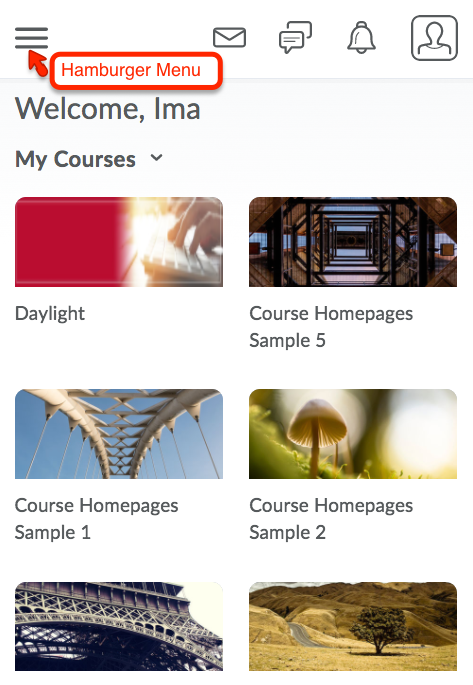
If you access eLC using a mobile device, the navigation bar will collapse into a Hamburger Menu, containing the links previously featured in the Navigation Bar.
Widgets −+
The Dashboard screen contains five widgets for all users by default:
- My Courses: Lists the 12 most recent courses in which you have been enrolled. Courses that are “pinned” will appear at the top of the list, and you can view courses by semester using the tabs above the course list (red box in image below). Tabs will typically only display current and most recent semesters.
- Announcements: Displays information and updates that are system-level. Announcements can be closed. You can click on the widget title to review dismissed announcements that have not expired.
- Due Date Tracker: Displays (for students only) upcoming assignments and due dates.
- Calendar: Displays any upcoming events listed in the calendar.
- Updates: Displays notifications regarding course changes.
- Accessibility: Contains information and links about digital accessibility for instructors and students.

Note:
Additional widgets may show up on your dashboard if you are not in an Instructor or Student role. The above information describes the most typical view.