
You can set up the notifications center in eLC to receive notification messages about important events in one or more courses. You can customize the settings to select what you are notified about and how notifications are delivered.

Accessing the Notification Center

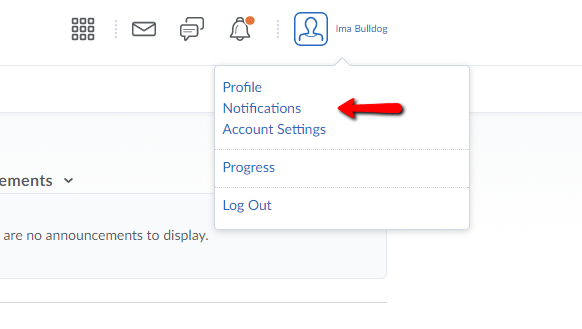
  1. Click your username or profile picture.
  2. Select Notifications

Setting Up Notifications

The notification settings window provides several different options that you can modify. From here, you can change your notification email address, choose a summary of activity option, opt in to instant email notifications, customize notifications, and set course exclusions.

Contact Methods
+

Choose where you would like notifications to be sent: an email address and/or a mobile number.

Summary of Activity
+

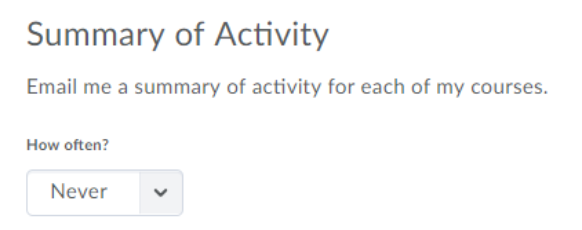
You can choose to receive a daily summary of eLC courses updates. If you wish to activate this feature, select Daily from the drop-down menu and choose the time the notification should be sent. By default, this option is set to Never.

Instant Notifications
+

Select the information you want to be notified about immediately by checking the email and/or SMS contact methods. For instance, you can check box off the email and SMS boxes to receive a notification whenever an announcement update is posted in your eLC courses.

Customize Notifications
+

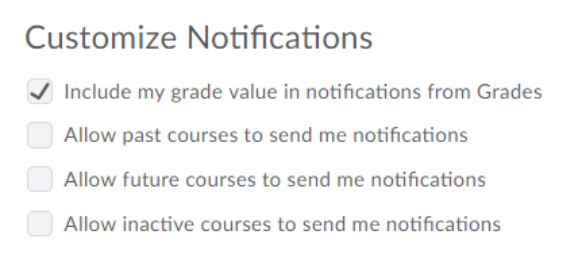
You can choose to receive grade values in notifications about grades or receive notifications about past, future, or inactive courses.

Exclude Some Courses
+

By default, all courses are included in the notifications system. If you do not wish to receive notifications about specific courses, you can choose to have some courses excluded.

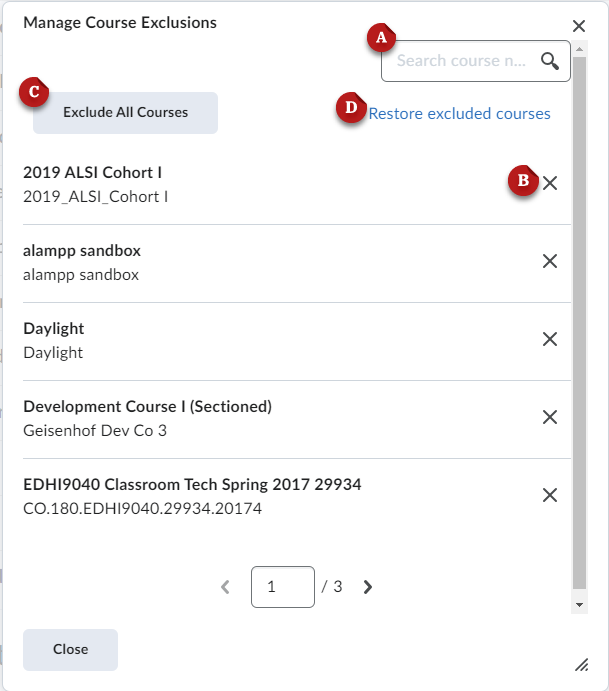
  1. Click Manage my course exclusions
  2. Type up the course name or code in the search box [A] or browse through the pages at the bottom.
  3. Click the X [B] to exclude a course.
  4. You can exclude everything by clicking Exclude All Courses [C].
  5. If you wish to add courses back to the notifications system, click Restore excluded courses [D].

Need more help with eLC?

Visit our support page to identify your best help options

FIND SUPPORT