

Courses in eLC are automatically assigned a decorative image. That image will be displayed as the banner inside your course, and as the thumbnail icon on the eLC dashboard.
Changing the Course Image and Banner −+
The course card image and banner image are the same for a given course. To change the course image and banner of any course, you must hold an Instructor or TA role within that course.
Changing the course image from the My Courses widget:
- Click the three dots button [A] on the image you want to change.
- Select Change Image [B].
- Search for an image you like and select Use This Image.
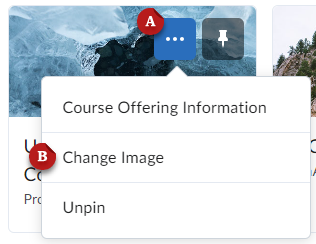
Changing the Course image while inside a course:
- Click the three dots button [A] on the image you want to change.
- Select Change Image [B].
- Search for an image you like and select Use This Image.

Uploading Your Own Image
You may upload your own file to use for the course image and banner. D2L recommends images of size 2400 pixels by 960 pixels for course images. The image automatically scales for different devices. As a result, we recommend that you avoid using images that contain text.
- Navigate to the Change Image menu (shown above).
- Click Upload.
- Select My Computer.
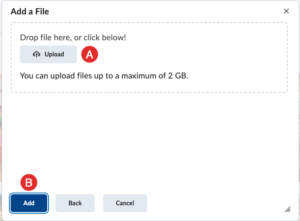
- Click Upload [A].
- Browse your computer to find the image you want to upload.
- Click Add [B].
Removing & Restoring the Course Banner −+
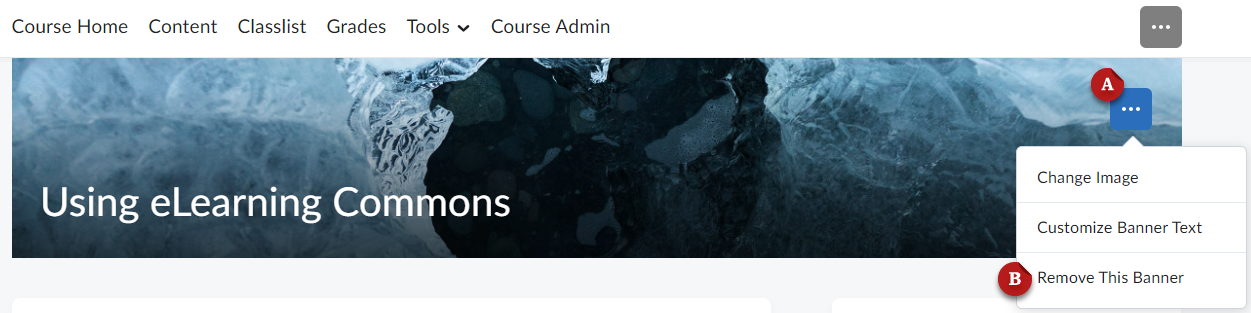
You can remove the banner image from your course if you would like.
- Navigate to the course homepage.
- Click the three dots button [A] on the banner.
- Select Remove This Banner [B].
Restoring the Course Banner
If you want to display the course banner again after choosing to remove it, you will need to restore it.
- From the course nav bar, click Course Admin.
- Find and click Course Offering Information.
- Find and select the option to Display the image in a banner.
- Click Save.

Customizing Course Banner Text −+
Instructors and TAs can customize the banner text in your course.
Changing the banner text while inside a course:
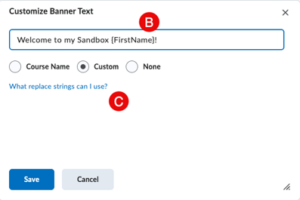
- Click the three dots button [A] on the banner you want to customize.
- Enter your text in the text field and select Custom [B] or select None for no text.
- Note that you can also use Replace Strings in this field, to further personalize the text in this banner. For example, use {FirstName} in the text field, and each student will see their own name in the course banner. Click on What replace strings can I use? [C] for a list of available options.
- Click Save.