


You can use the Classlist tool to view students enrolled in your course, to identify who is currently working online, and contact those users via email and the Pager tool with instant messages. From the Classlist tool, you can view user profiles, access the User Progress tool, print a class list, and check enrollment reports.
Adding Users to the Course −+
Students are automatically added to and dropped from your courses each night based on Athena data. It is not necessary to manually add students to your courses. The Registrar prefers that all student enrollments come from Athena. If you are managing a non-athena eLC course, you will have to manually enroll all your users as automatic enrollment is not possible.
Note: TAs are not automatically added to courses. You will need to manually enroll TAs using this process.
- From the Course Navbar, select the Classlist.
- Click Add Participants, then choose Add existing users.
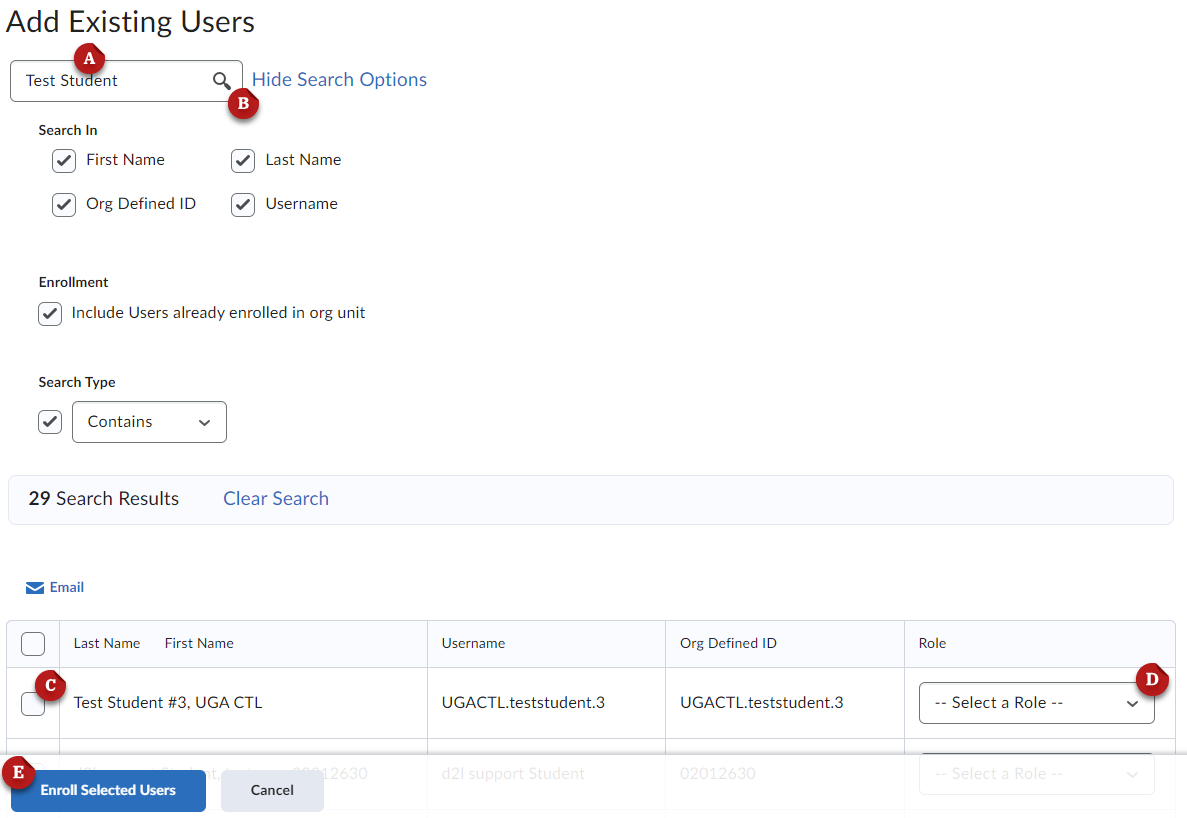
- Use the Search Bar [A] to look up the user. You can search by First Name, Last Name, or Username (UGA MyID).
- Click the search button [B] to run the search.
- Click the checkbox [C] beside the user you want to enroll.
- From the role dropdown menu [D], select the desired role for the user. Learn more about eLC course roles.
- Enroll Selected Users [E]
Removing Users from the Course −+
You can remove uses in your course, however students will automatically be re-enrolled in courses each night based on Athena enrollment data. It is not necessary for you to remove students who drop your course, as Athena’s connections will handle this automatically. If you are managing a non-Athena course, you will have to manually remove users.
- From the Course Navbar, select the Classlist
- Click the checkbox [A] beside the user you want to remove.
- Select Unenroll [B]
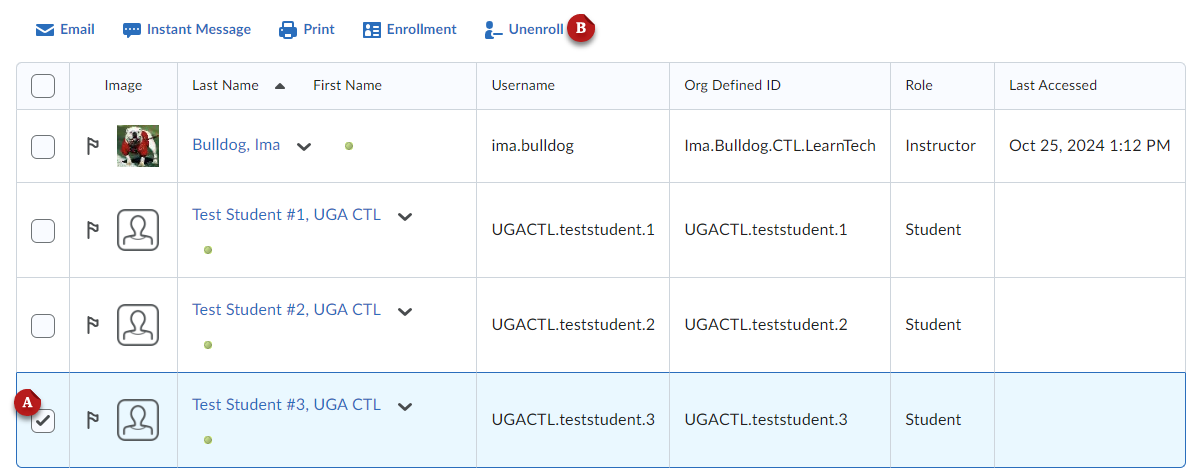
- On the confirmation window, choose Yes.
Checking Student Progress −+
Checking user progress allows you to view a student or another user’s progress.
- From the Course Navbar, select Classlist.
- Click the dropdown menu next to the selected user’s name. Select View progress.
- You will be redirected to the Progress Summary. You can view data by clicking on each tool underneath Progress Summary or from the navigation menu on the left.
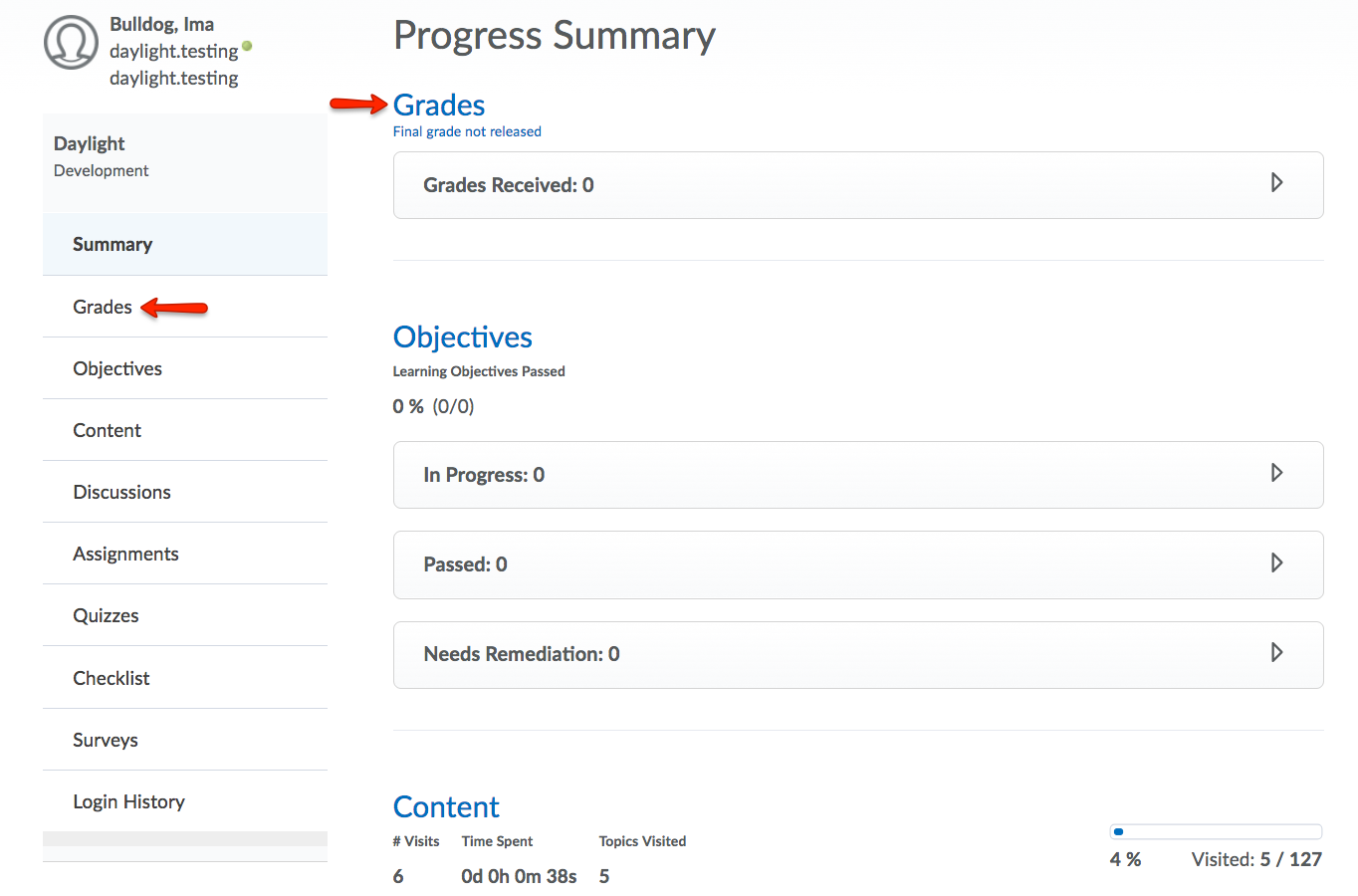
- Within each tool, you will see a summary of activity and progress tracked for that student.
Emailing from the Classlist −+
Sending email using the Classlist allows you to send emails to specific users in your course or the entire Classlist.
Note: This is not the UGA email system. Students can not reply to messages you send this way. We encourage you to use this message feature for one-way announcements and reminders.
- From the Course Navbar, select Classlist.
- Select the checkbox to the left of the username(s) you wish to send an email. Then, click Email.
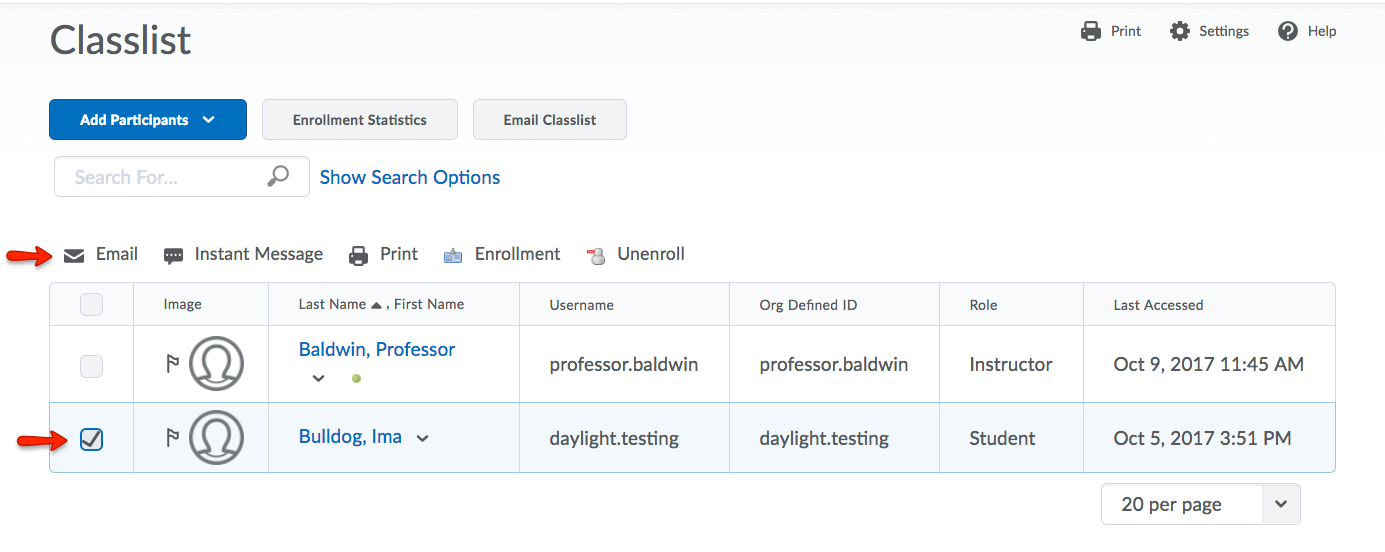
- (Optional) Email the entire classlist at once by clicking the Email Classlist button.
- A new window will open, where you can compose your email message.
- Click Send.
Instructor Permissions for the eLC Classlist −+
Beginning in Fall 2025, user permissions for Instructors in for-credit (Banner) courses will change. Specifically, Instructors in Banner courses will no longer be able to add or remove users to their eLC Classlist in the Student or Instructor roles.
This change helps to preserve data integrity between Banner and eLC, and ensure UGA policies are upheld (e.g., credentialing of course instructors, student enrollment in courses, and FERPA).
Students and Instructors are automatically populated in eLC course shells based on approved data in Banner and Athena, through a process that runs multiple times per day. If you believe you have been added or removed from a course in error, please check with your department administrator (faculty) and/or the Registrar’s Office (students).
The following is a list of alternative user roles that are available to Instructors in Banner courses:
- Demo Student (to view the course from the student’s perspective)
- Exporter/Reviewer, Reviewer (to view and/or export course materials, without making changes)
- Student Auditor (to view course content without graded participation)
- TA Roles (includes Teaching Assistant, TA Designer, TA Grader, Laboratory Assistant, and Peer Learning Assistant)
See above for more information on managing your eLC classlist and/or adding users to a course.
Exporting the Classlist −+
Follow these instructions to export your Classlist:
- Navigate to the Classlist tool – either from the course navigation bar or through Course Admin.
- Option 1: Export the entire Classlist — select the Export link in the top right of the page.
Option 2: Export a subset of the Classlist — select the checkboxes beside only those users you would like to include in the export, then select the Export link directly above hte classlist.

- Once the export is complete, click Download.

Important Note:
The Classlist download will include both your students’ Usernames (typically their myID) and their Org Defined IDs (typically their 81X number). Org Defined IDs are classified as sensitive information, and should be treated appropriately. In general, only store 81X numbers on UGA-managed devices, and consider deleting them from your files if they are not needed for the task at hand.