


After students have completed a quiz, questions can be auto-graded or manually graded.
Grading Quizzes −+
This tutorial covers how to grade a quiz, showing both auto-graded questions and manually graded questions.
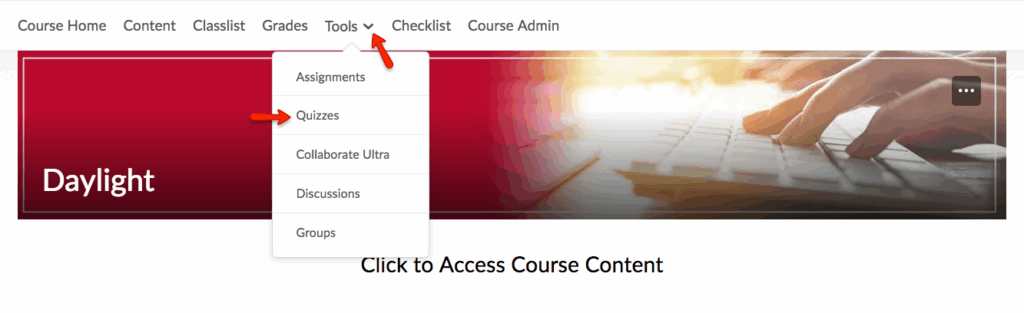
- Access the Quiz tool from your course navbar: click Tools and select Quizzes
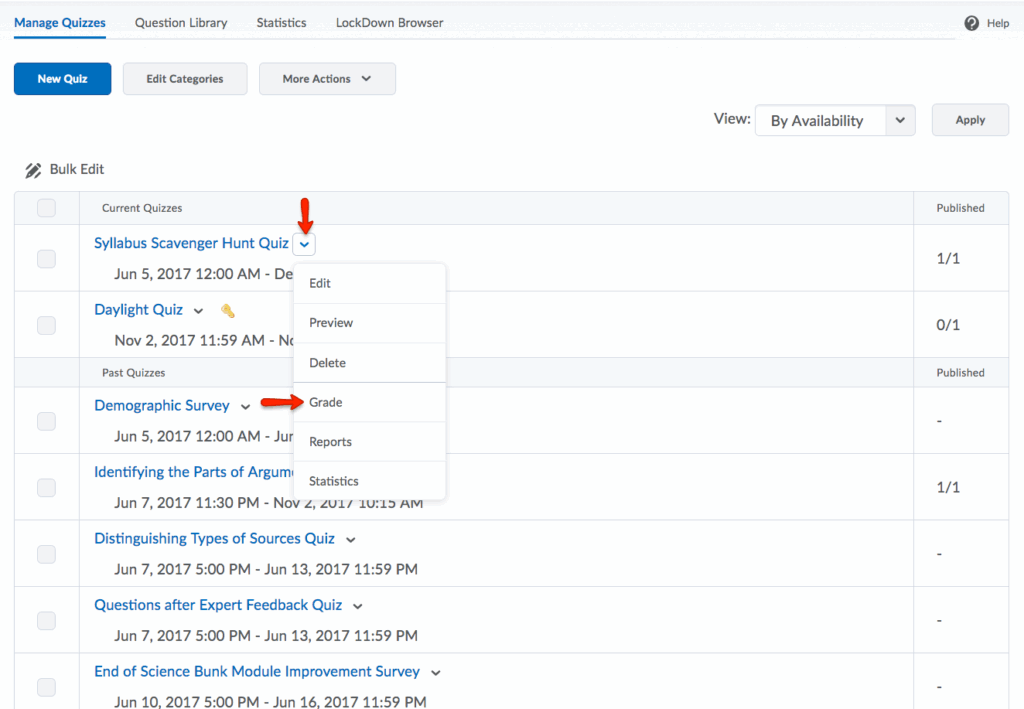
- Locate the quiz you wish to grade, and, to the right of the desired quiz name, click the arrow and select Grade from the dropdown menu.
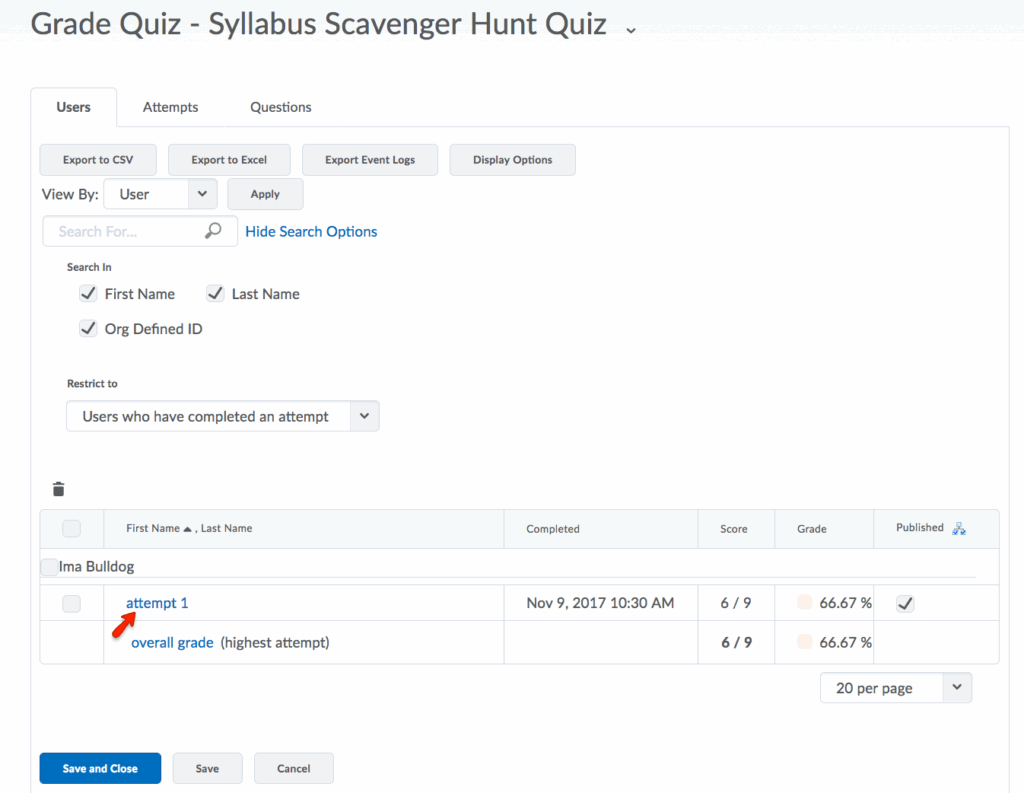
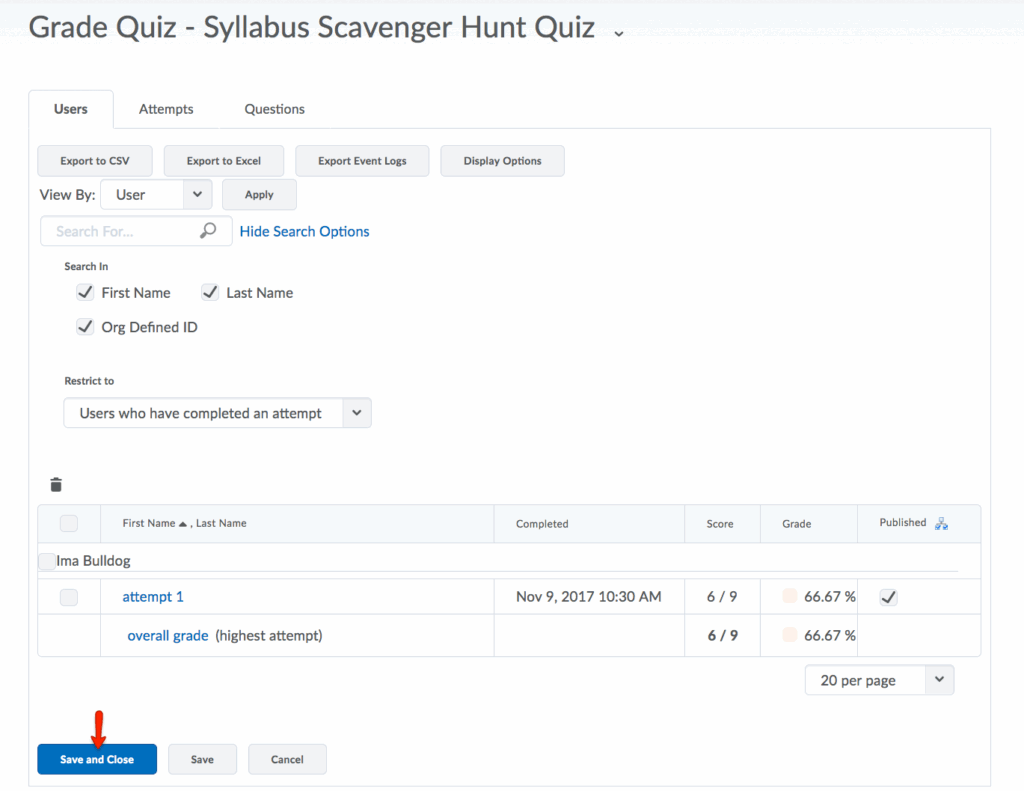
- Select the Submission (attempt 1, attempt 2, etc.) you wish to grade under each student’s name.
- Make sure all auto-graded questions were graded accurately. Any grades that were not auto-graded can be corrected manually.
- Certain question types, such as long answer or essay questions, are not auto-graded and must be entered manually. You may manually enter a grade in the Score field. The Feedback field is optional.
- When you have completed grading the quiz, return to the top of the page and click Save and Close.
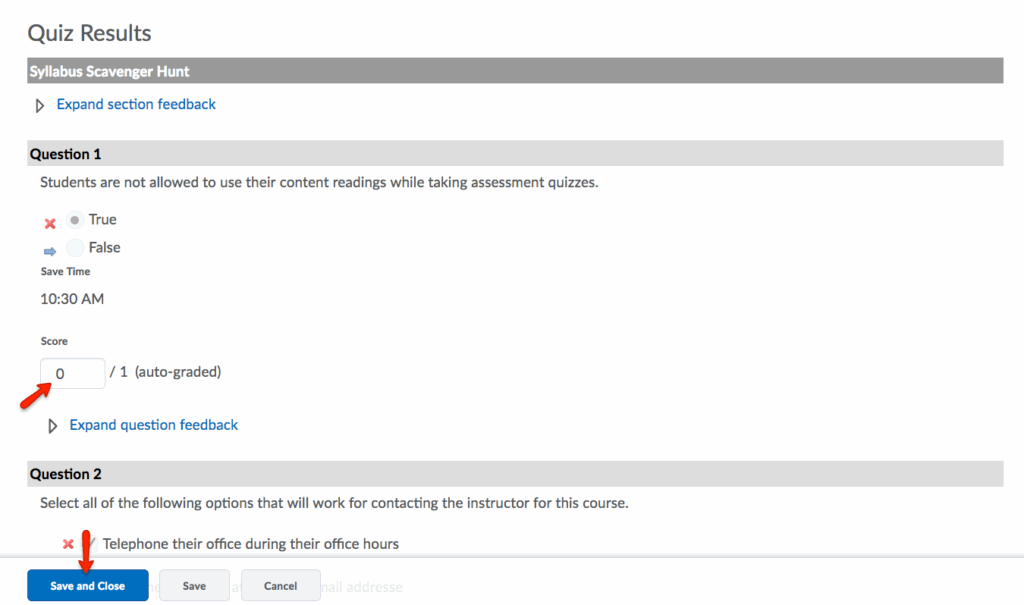
- When you have completed the grading process, click Save and Close.
Correcting Quiz Questions and Scores −+
If a mistake has been found in a quiz that has already been administered, it is possible to correct the scoring for that quiz. Scoring can be changed on the incorrect question and all student grading on that specific question can be automatically corrected. This is a two-stage procedure: First, the question gets regraded, and then the question is corrected in the quiz question library so that it will be correct for future use. This tutorial covers the steps necessary to both regrade the incorrect question and correct the question in the Question Library.
Regrading a Quiz Question
- First, to access the Quiz tool, from your course navbar, click Tools and select Quizzes
- To the right of the desired quiz name, click the arrow and select Grade from the dropdown menu.
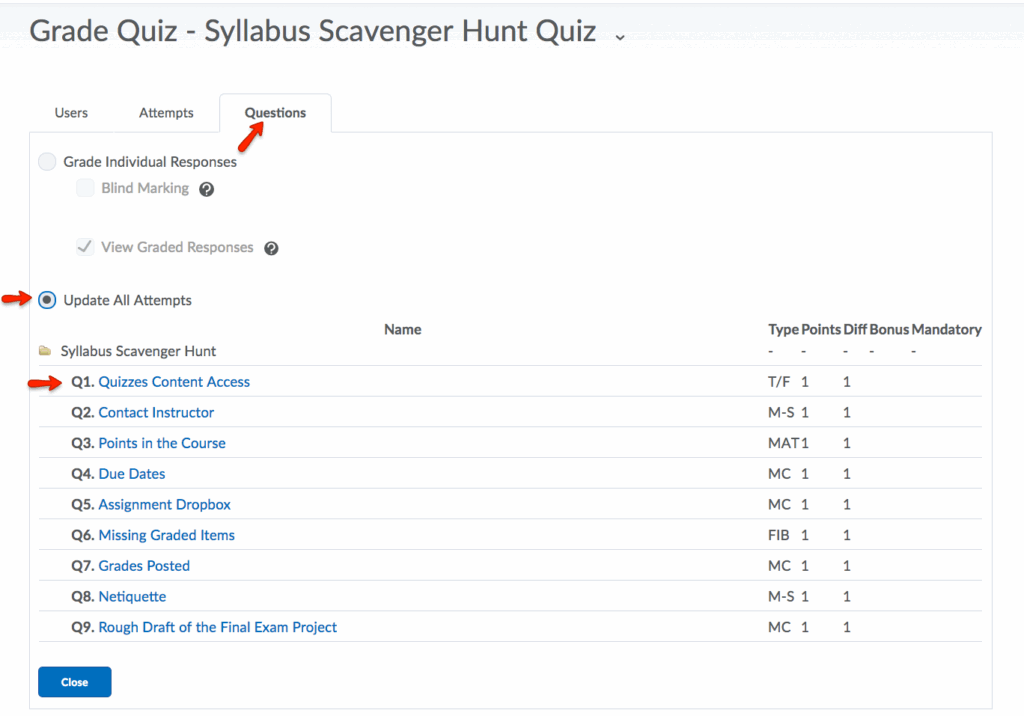
- Click the Questions tab.
- Click on the Update All Attempts radio button. This ensures that once you make your changes to the question, the grades of all students will be adjusted accordingly.
- From the list of questions, select the item(s) you wish to edit.
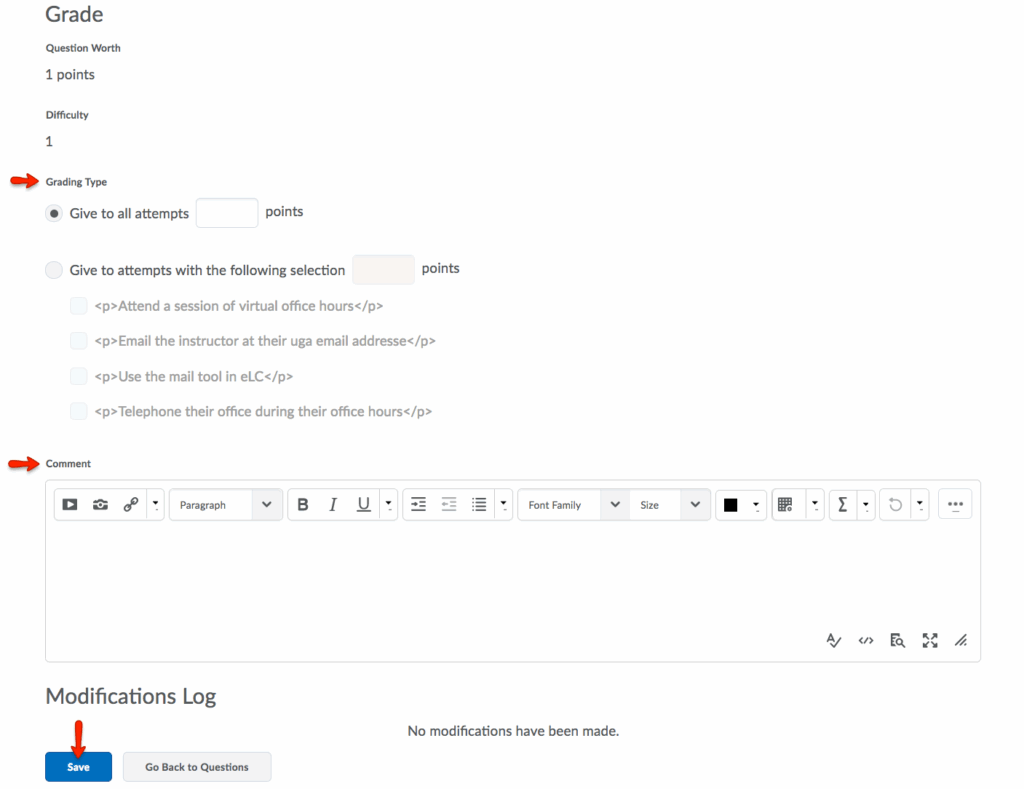
- Under the Grade section, select from the following two options:
- Give all students the same number of points for the question.
- Give the students who selected a specific answer the desired number of points.
- For either option, you may type an explanation in the Comment field.
- When you have finished, click Save.
Editing A Quiz Setting
- To access the Quiz tool, from your course navbar, click Tools and select Quizzes.
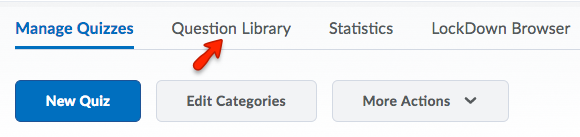
- From the quiz navigation menu, select the Question Library tab.
- Select the Question Section that houses the question you wish to edit. Then, select the question you wish to edit.

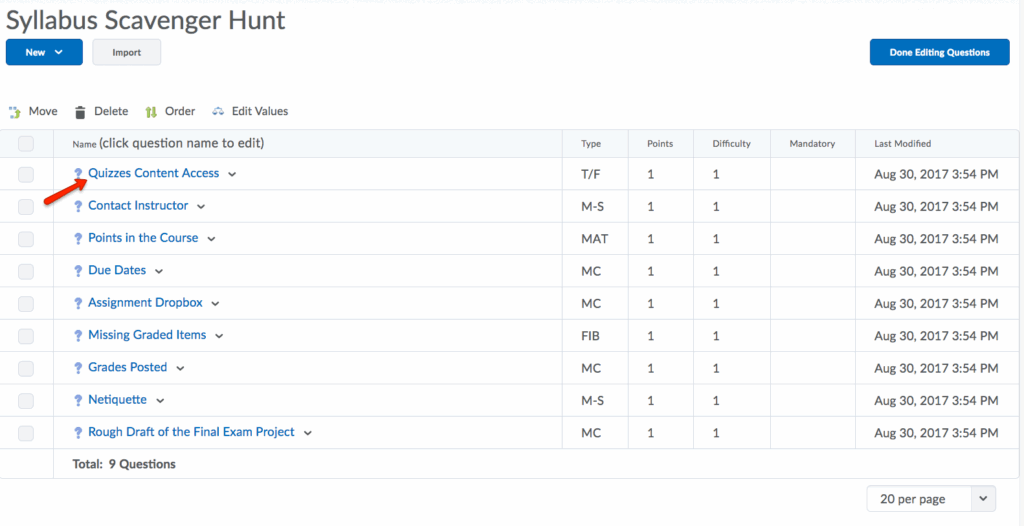
- Make the necessary corrections in the appropriate fields.
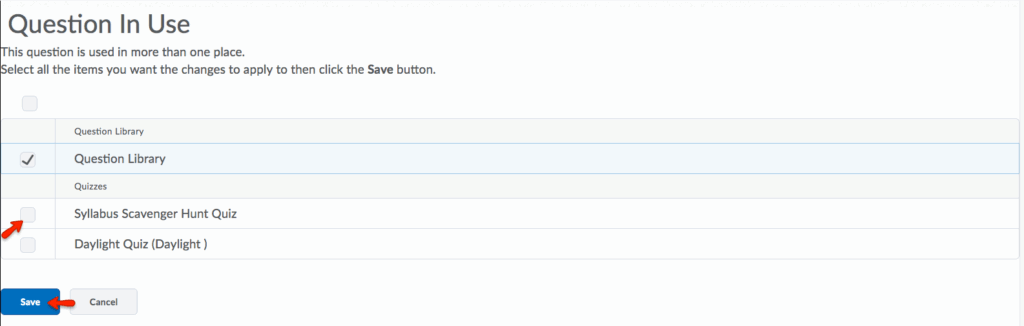
- In the Questions in Use window, choose all the items to apply the change(s). Then, click Save. The incorrect version of the question will be removed from the library and any other assessments you have chosen, replaced by the new, edited version.
Incomplete and Unsubmitted Quizzes −+
As instructors, you may sometimes be faced with cases of quizzes that are not submitted by students even after the enforced time period despite starting the quiz attempt. In these cases, eLC has equipped instructors with the ability to manually submit the incomplete/unsubmitted quizzes so that they can be graded. The following steps may be followed in this scenario:
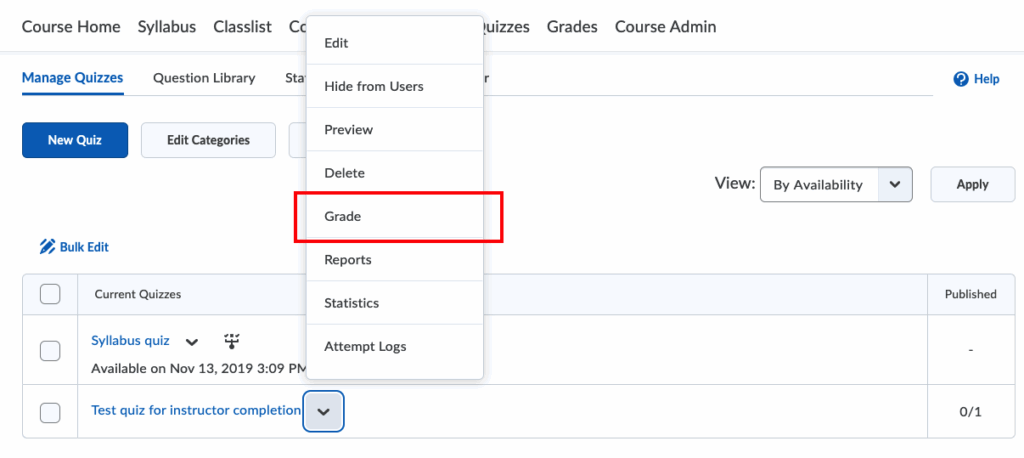
- Click on the arrow next to the quiz and select Grade
- In the next window, click on Show Search Options.

- In the dropdown for the Restrict to option, select Users with attempts in progress and click on the search icon.
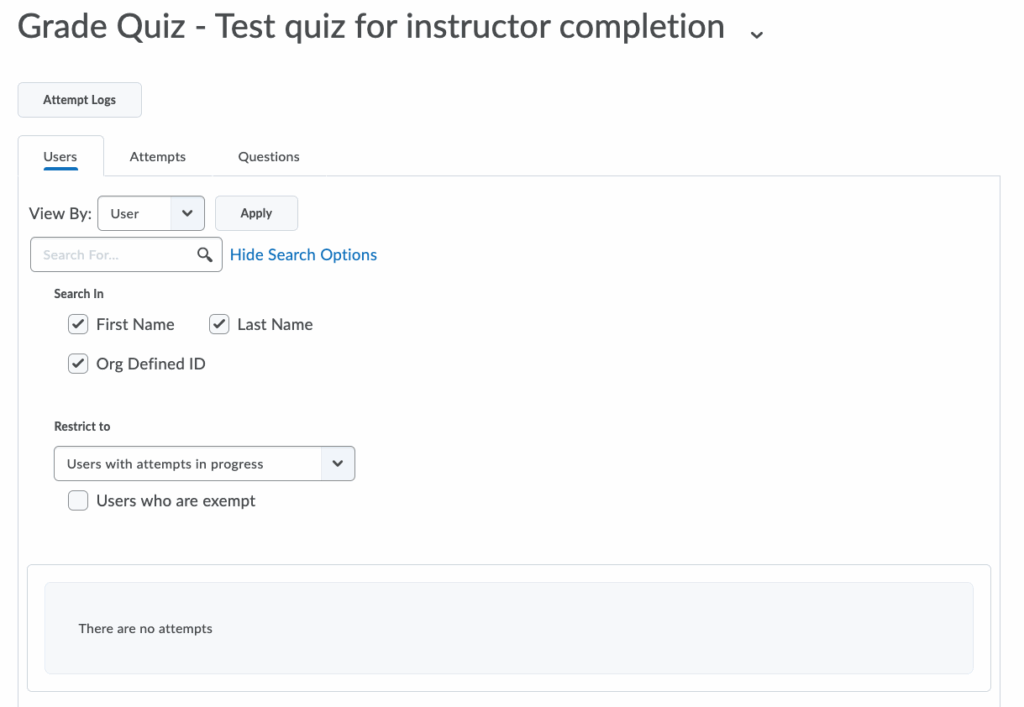
All users with ongoing attempts will show up in the list with (in progress) written next to it.
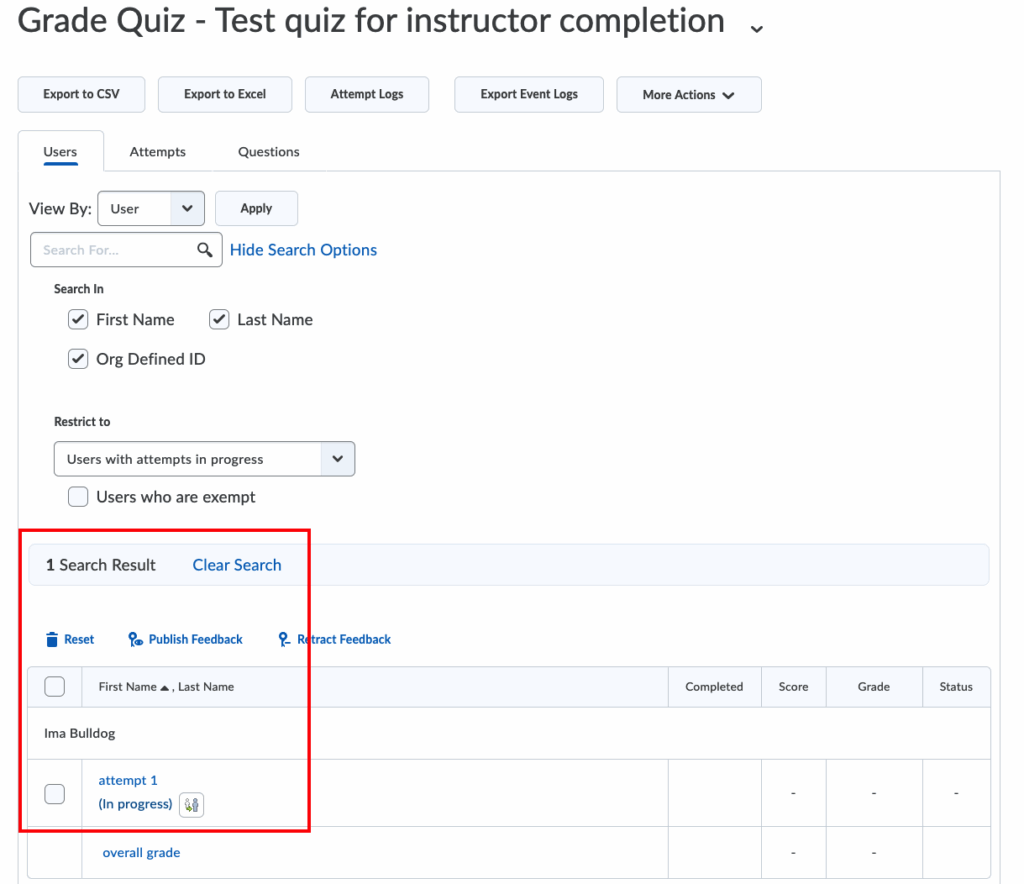
- Click on the Enter quiz as user icon next to the ongoing attempt. eLC will display a prompt asking for confirmation.
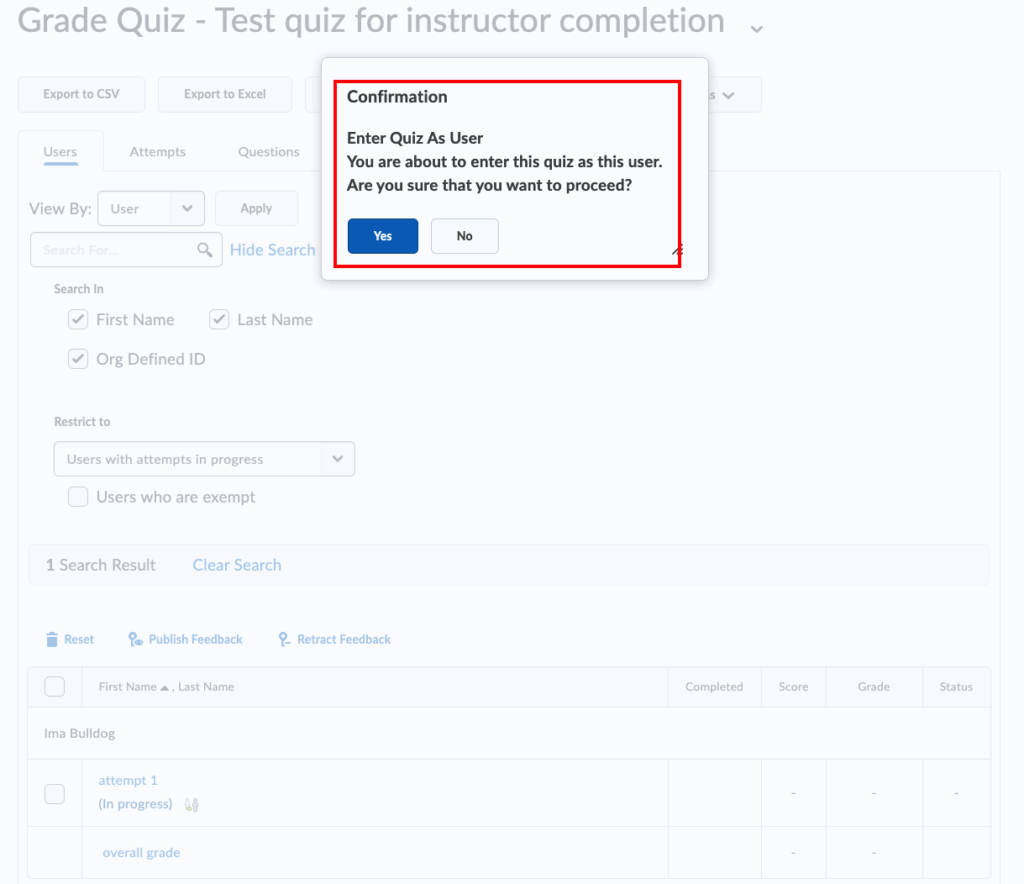
- Click on Yes. You will now be redirected to the quiz. You will be asked for confirmation. Click on Submit Quiz
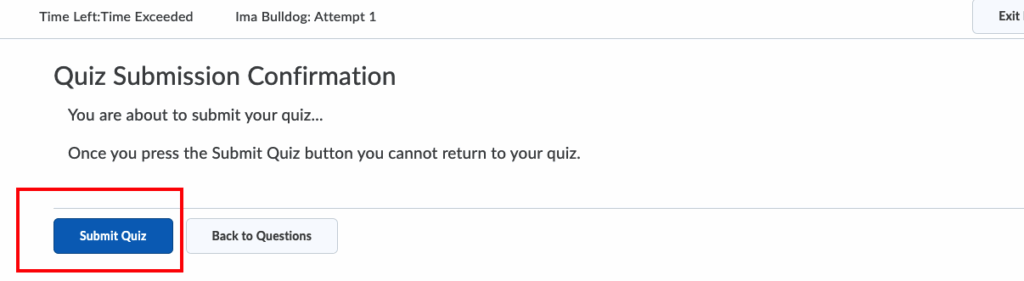
This will complete the attempt which will start showing in the list of completed attempts.