


Creating Grade Items −+
- To begin the process of creating a grade item, select Manage Grades from the Grades navbar. Then, click New. From the drop-down menu, choose Item.

- There are many Grade Items to choose from. Usually, the choice will be Numeric. For this demonstration,Numeric will be selected for the Grade Item Type.
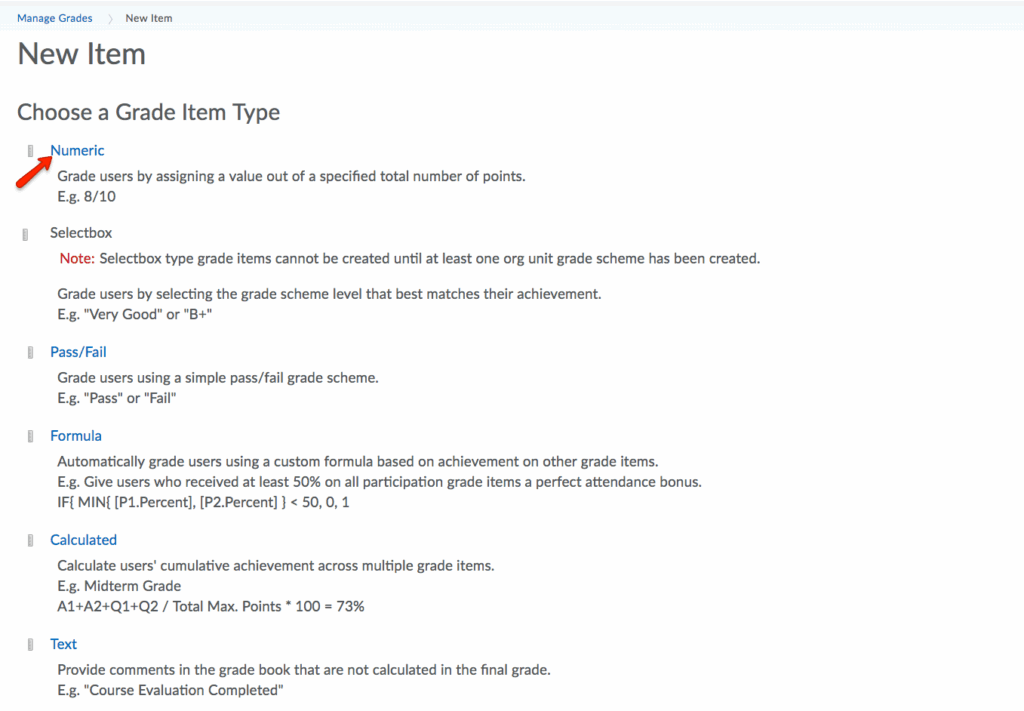
- This demonstration will begin with Quizzes. A numeric Grade Item will be created with the following settings:
- Name: Quiz 1
- Category: Quizzes
- Max Points: 20
- Weight: Automatically populated (because the category was set to automatically weight all items evenly).
- Grade Scheme: Default Scheme – Percentage

- Click Save and New.
- You can repeat this process for all grade items needed. For this demonstration, three more quizzes were created (Quizzes 2, 3, and 4).
- Click on Grades List to see your gradebook. Now, four quizzes are listed.
- Note: The Quizzes category is weighted at 20%, but each quiz within the category is weighted at 25% (25% of the Category Weight.)

- Note: The Quizzes category is weighted at 20%, but each quiz within the category is weighted at 25% (25% of the Category Weight.)
Associating Graded Activities with Gradebook Items −+