


Adding Topics: Creating Files −+
The following tutorial outlines the steps necessary to add a topic within a module and create HTML content within that topic.
- First, navigate to the desired course, and access the Content tool by selecting Content from the course navbar or clicking Click to Access Course Content.

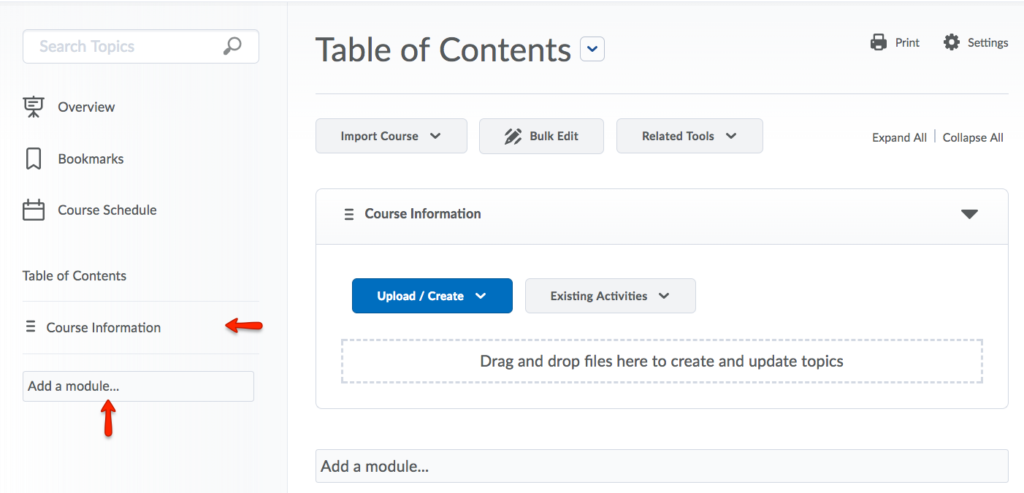
- To add files to your Content area, you must first create at least one Module (see above). If you already have a module, click on it to make it the active module.
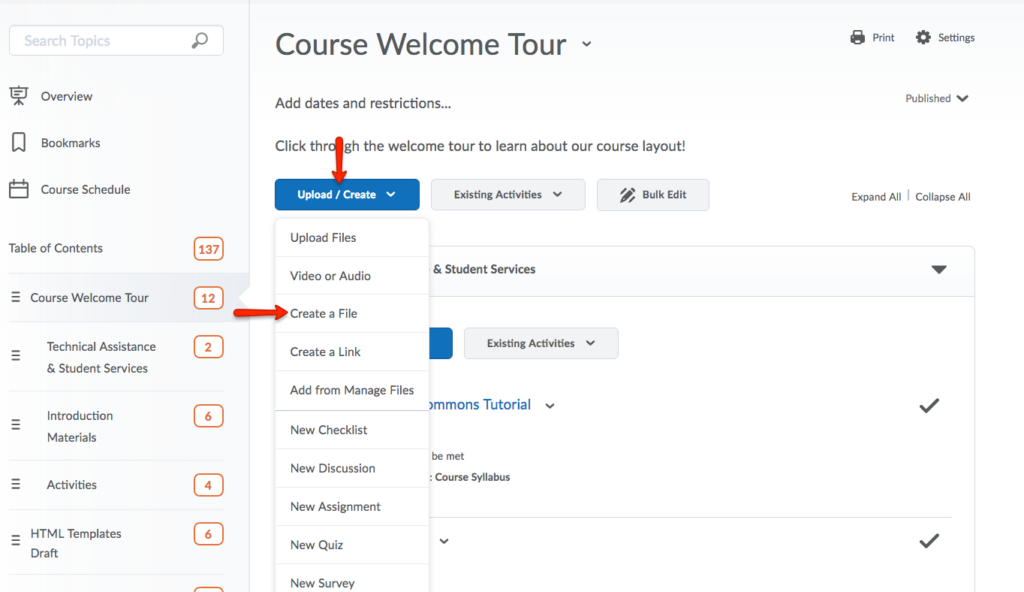
- Next, click Upload/Create. Select Create a File.
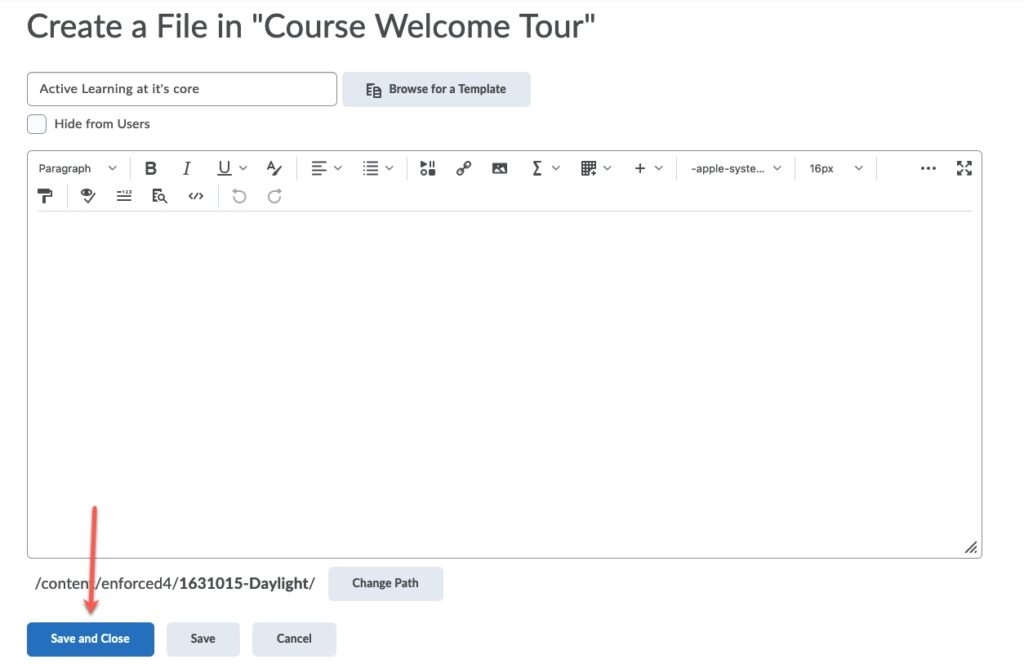
- Give the file a Title. You can then insert the text. You also have the ability to use the Insert Stuff, Image, and Quick Link buttons on the toolbar.

- Click the Check Accessibility icon, an eye with a checkmark. Possible errors this tool may find are images that don’t have any alt text or visible contrast error. For many of the remediations, you can resolve it right in place.

- When you have completed creating the file, click Save and Close.
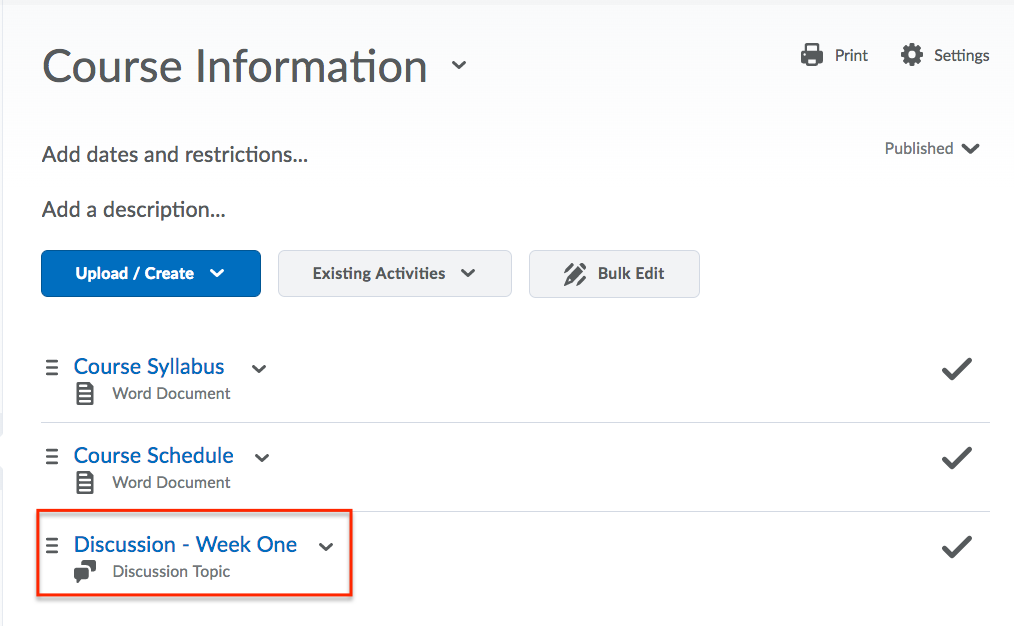
- The file is now present within the Content Module.
Adding Topics: Activities −+
The following tutorial outlines the steps necessary to add a topic within a module and add an activity, such as a discussion, quiz, assignment, or survey, within that topic.
- First, navigate to the desired course, and access the Content tool by selecting Content from the course navbar or clicking Click to Access Course Content.

- To add activities to your Content area, you must first create at least one Module. If you already have a module, click on it to make it the active module.
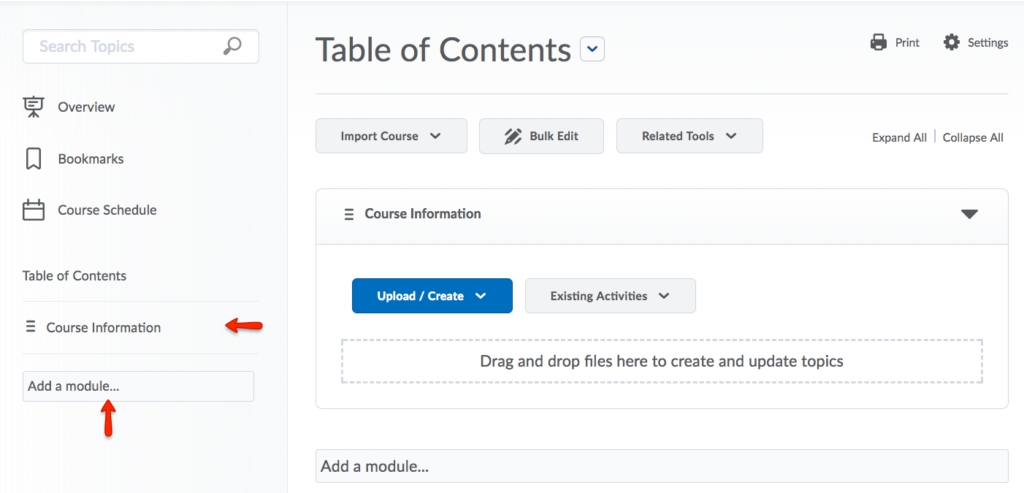
- Next, to add a new activity, click Upload/Create. To add an existing activity click Existing Activities.

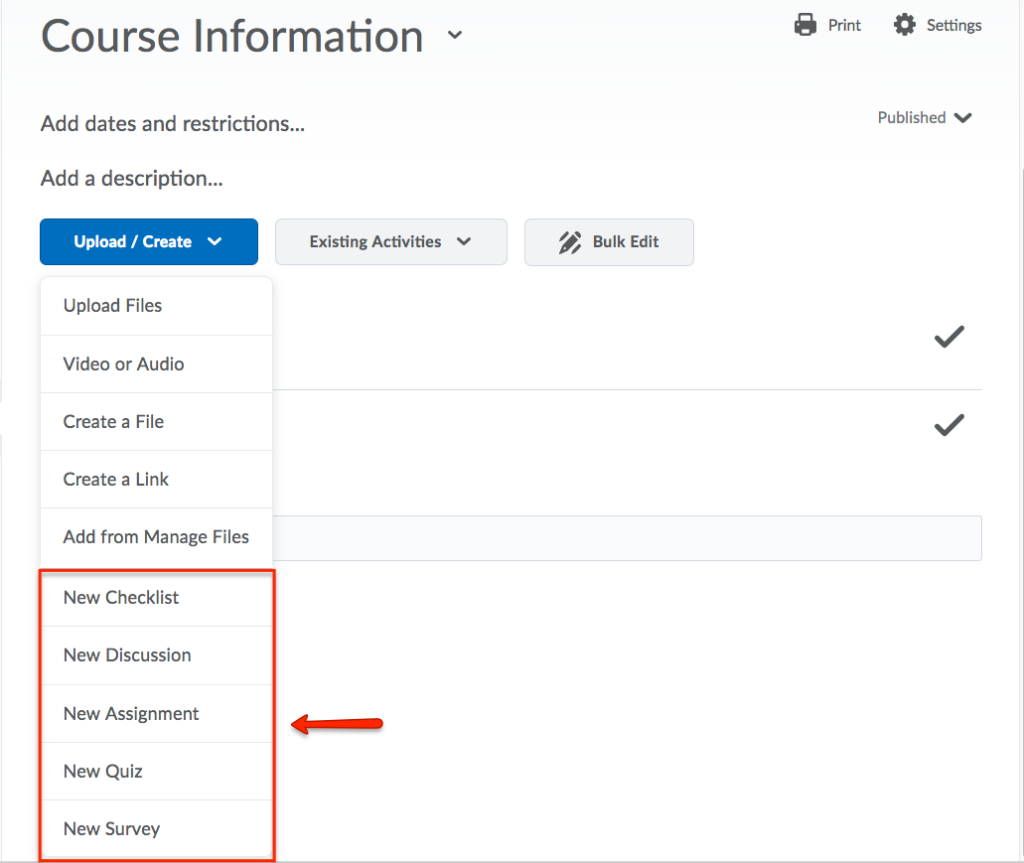
- If Upload/Create is selected, you can select one of the following activities to create: Checklist, Discussion, Assignment, Quiz, or Survey.
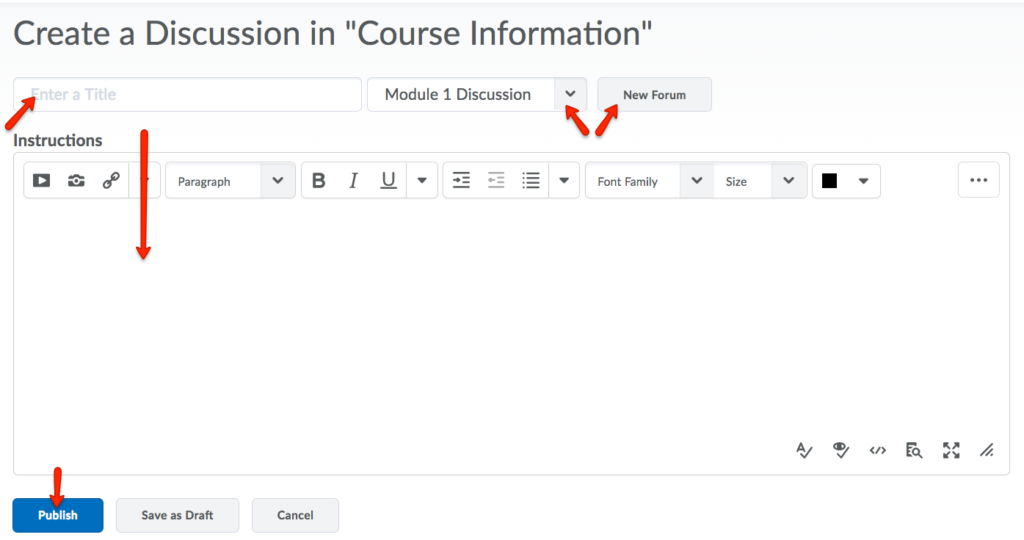
- After selecting an activity, you will be redirected to the creation page of the selected activity. For this tutorial, Discussion has been selected. Give the activity a Name, choose or create a Forum, and provide Instructions. When you have completed creating the activity, click Publish.
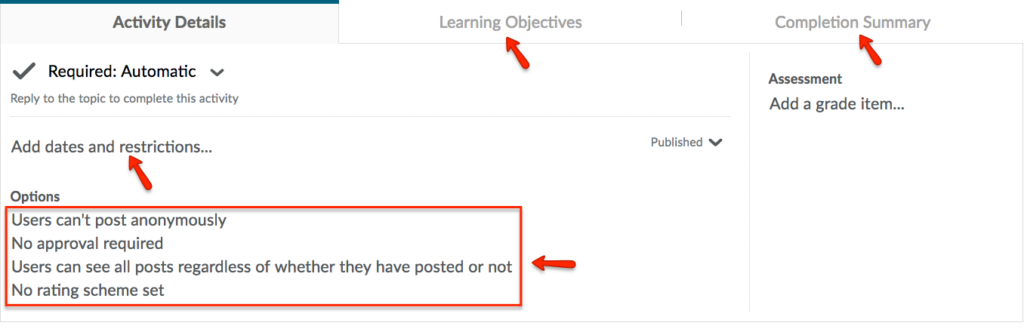
- Instructors have the ability to change the Activity Details by adding dates and restrictions and altering various options such as users’ posting abilities and required approvals. Additionally, you can add Learning Objectives and view a Completion Summary.
- The discussion is now present within the Content Module.
- When adding an Existing Activity, you can select from a long list of activities. For this tutorial, Discussions has been selected.

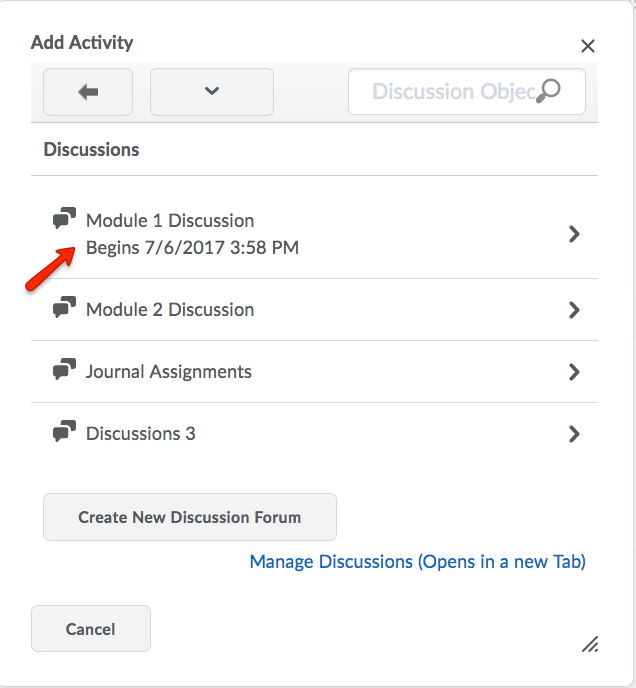
- Choose an existing Discussion Forum.
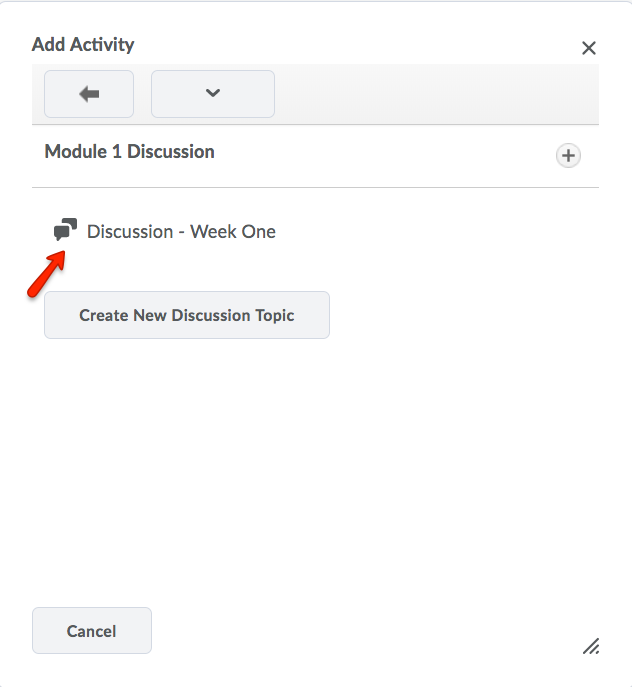
- Then, select the Discussion Topic.
- The discussion is now present within the Content Module.
Creating Files/Pages −+
You can use eLC to create new files / pages in your eLC course. These are great ways to add lots of text content to your course in an accessible format that will be visible for students regardless of how they open and use eLC.
Note: The HTML editor offers a Check Accessibility option. This promotes HTML content as the best content to author within the eLC system to meet the needs of every learner. HTML content lets you ensure maximum interoperability with the learning aids that your students might be using (a screen reader, a color contrast plug-in, and so on).
To create a new file/page:
- Click on the module or sub-module to which you would like to add the file/page.
- Click Create New.
- Choose HTML Page/File.
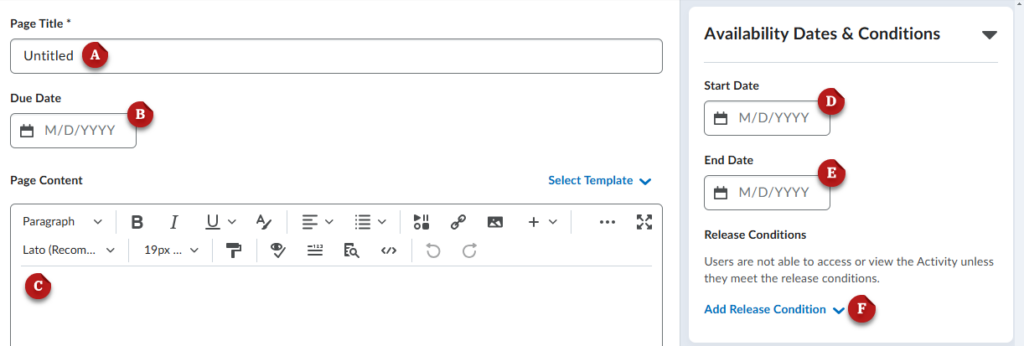
- Give the file / page a title [A].
- Set a Due Date (not recommended) [B].
- Use the editor to input all of your Page Content [C].
- Set a Start Date [D].
- Set an End Date [E].
- (Optional) Add Release Conditions for the page [F].
- Click Save and Close to create the page.
Adding Activities −+
You can add activities to your course content area like Assignments, Quizzes, Discussions, and Checklists. This allows you to organize activities into appropriate modules or sub-modules, making it easier for students to find and complete.
- Click on the module or sub-module to which you want to add the activity.
- Click Add Existing to add activities you have already created. You can also select Create New if you want to directly create a new activity and add it to your content area.
- Choose the activity type you want to add or create: Assignment, Discussion, Quiz, or Checklist.

- Once an activity has been added to the content area, you can edit it directly by clicking Edit Activity. From here, you can modify the activity’s restrictions and settings.