


Generating Reports−+
Generating Reports
−+
You can generate reports about how students interact with course material using the Reporting Tool. All of the activities within eLC automatically generate reports and statistics, so you can always see what’s going on within your course.
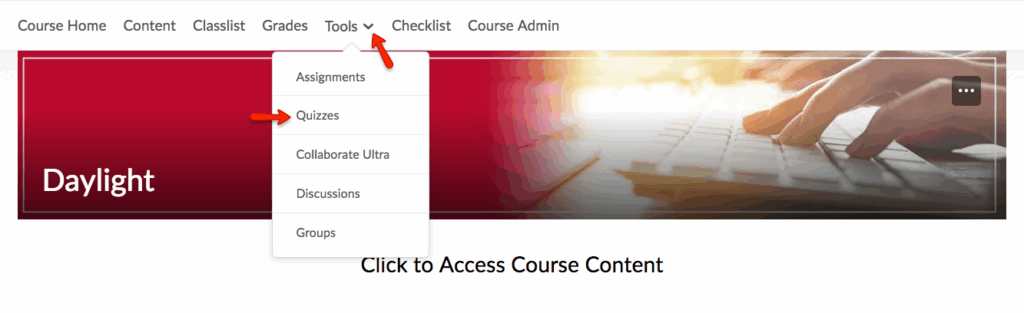
- To begin the process of generating a report for a quiz, you must first access the Quiz tool. To do this, click Tools and select Quizzes.
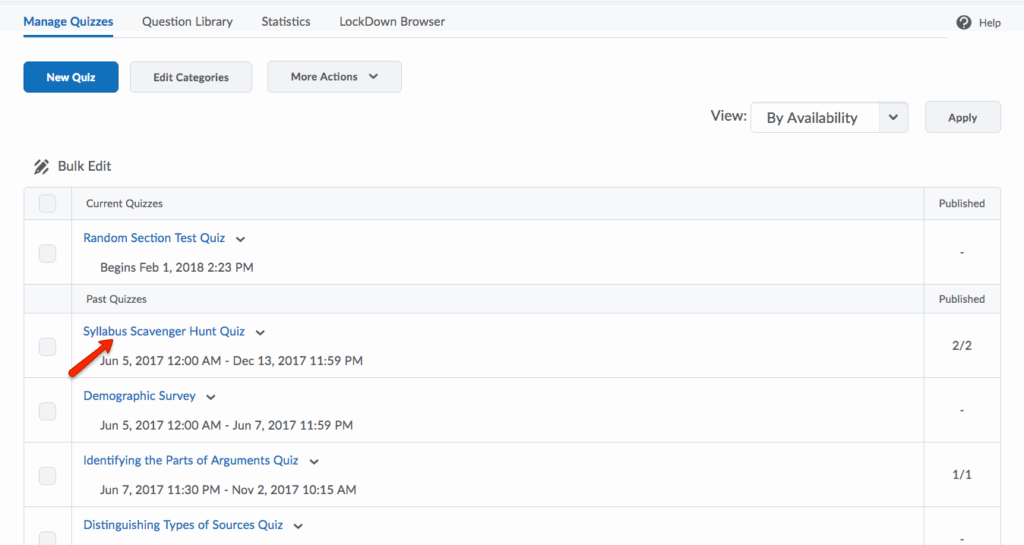
- Then, click the name of the quiz for which you would like to generate a report.
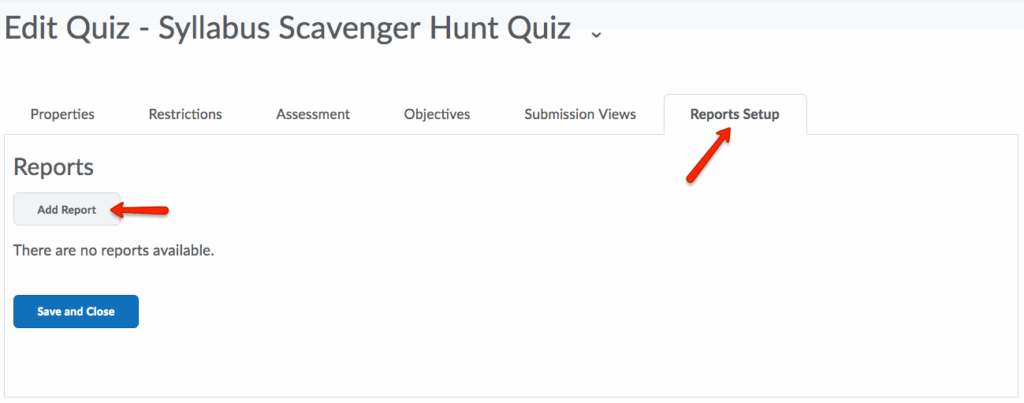
- Select the Report Setup tab. Then, click Add Report.
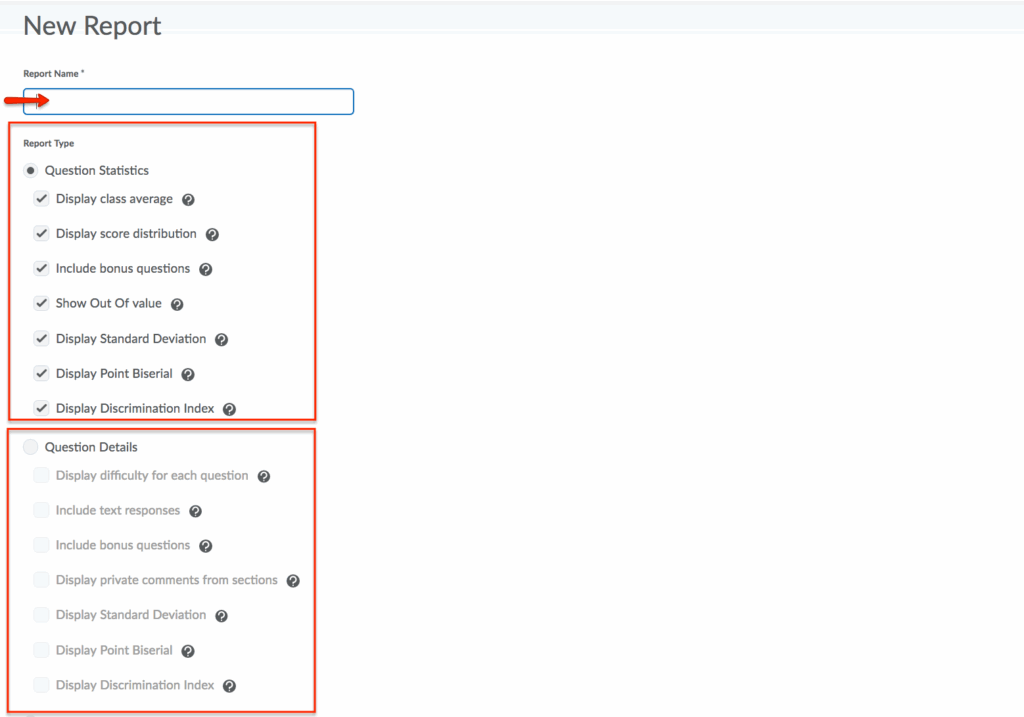
- Give the report a name. Then, under Report Type, select what Question Statistics, Question Details, Users Statistics, Attempt Statistics, Attempt Details, User Attempts. Under Release, select immediately or a date and time for a later release. Under Release Report To, select the roles you would like to receive the report. When you have customized the report, click Save.
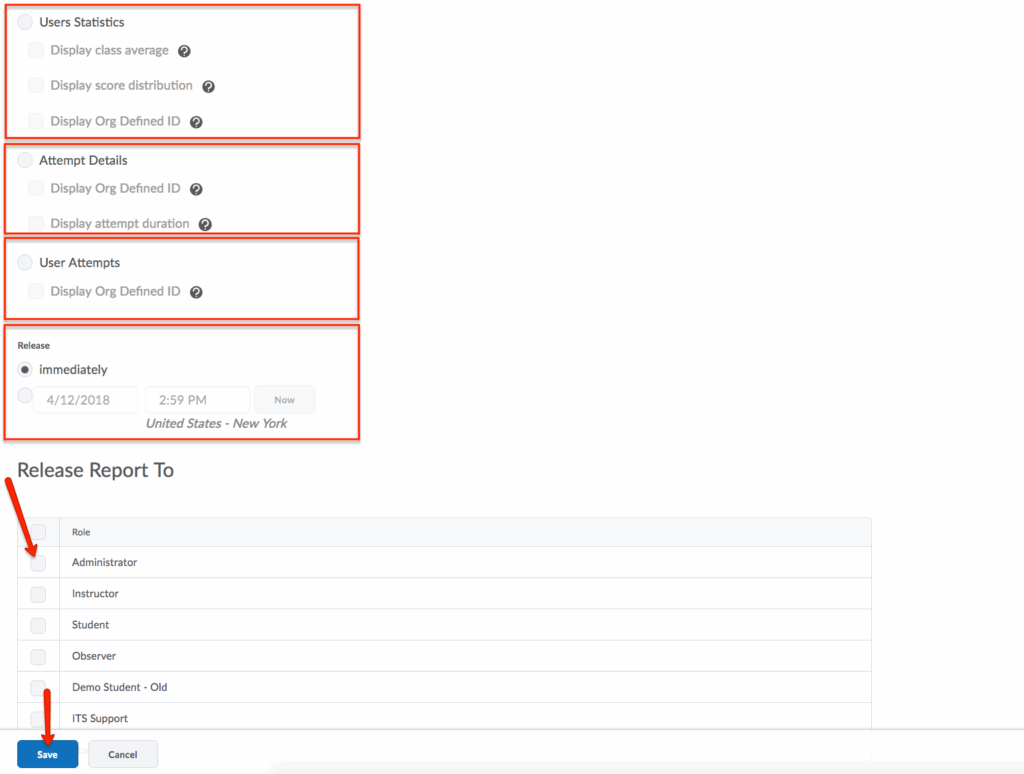
- Your report will now be displayed within the Reports Setup section.

- You can access these reports again at any time by, first, selecting Tools and then Quizzes. Next, click the dropdown menu of the quiz in question and selecting Reports.
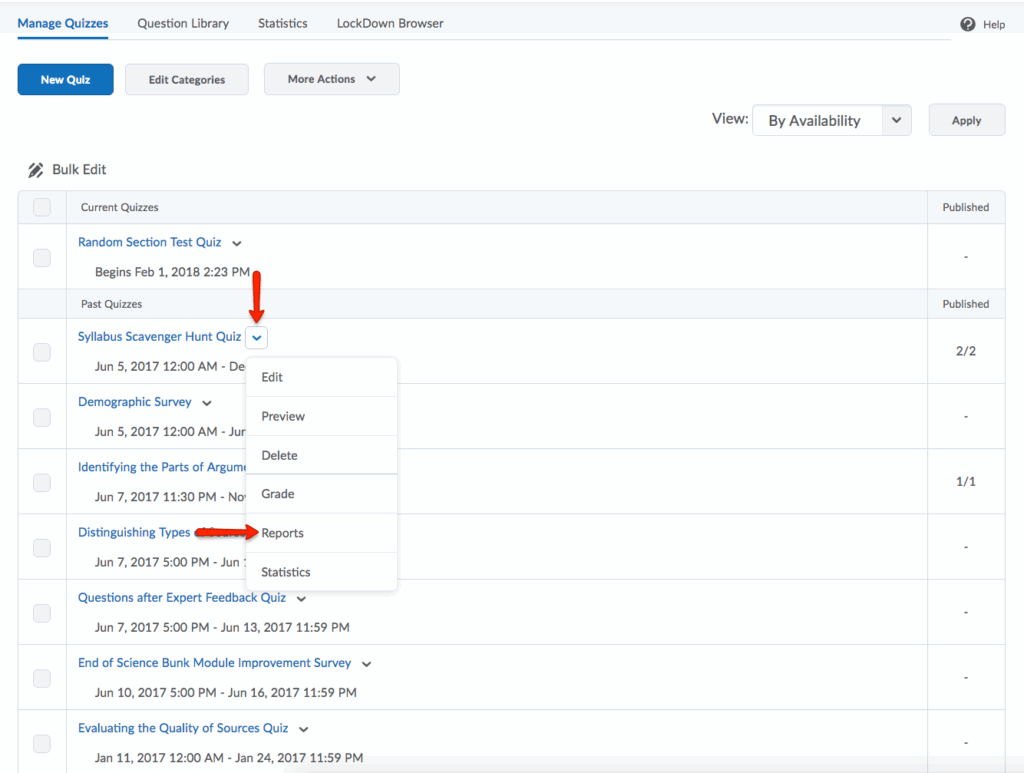
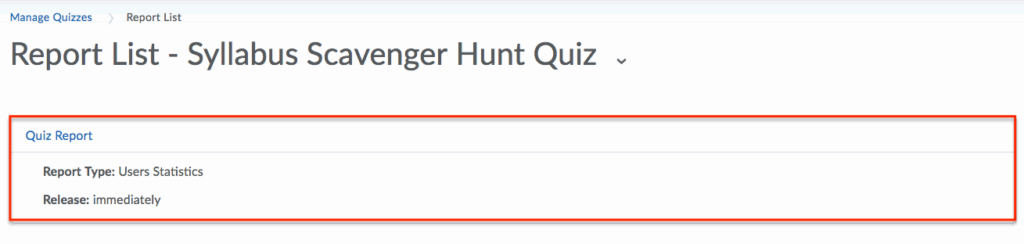
- All generated reports will be listed on the Report List.
Viewing & Exporting Quiz Statistics−+
Viewing & Exporting Quiz Statistics
−+
As an instructor, you have the ability to view and export quiz statistics and reports to a CSV file for data analysis. The CSV file contains all pertinent information on the quiz so that can query, sort, and evaluate the data without being connected to eLC.
All quiz statistics are calculated based on a user’s first attempt of the quiz. If a question is changed after attempts have occurred, then only attempts on the newest version of the question are included in the statistical calculations.
- To begin the process of viewing and exporting quiz statistics, you must first access the Quiz tool. To do this, click Tools and select Quizzes.
- Then, from the dropdown menu of the quiz in question, select Statistics.

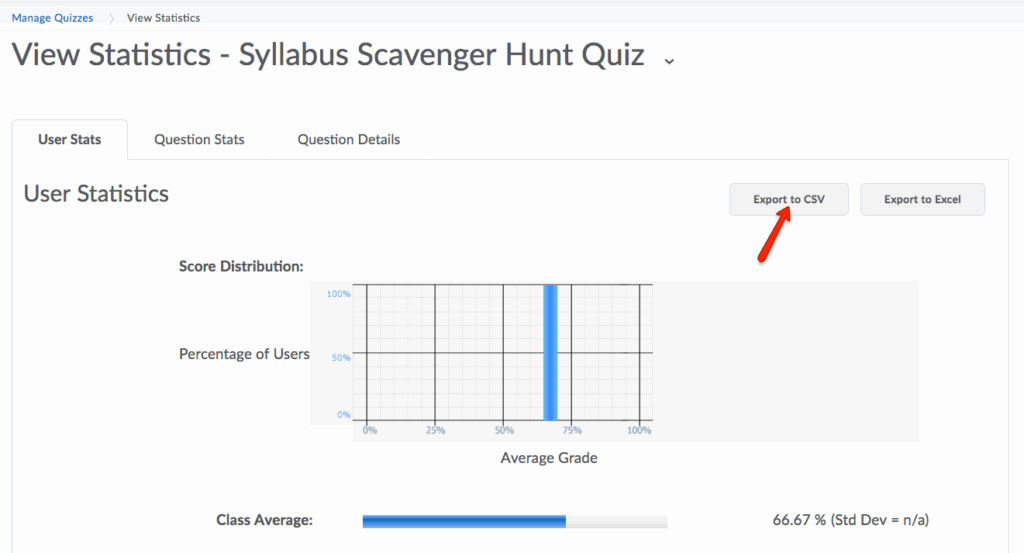
- On the View Statistics page, click the Users Stats, Question Stats, or Question Details tabs to view statistics broken down by user and by question.
- User Stats: The class average and standard deviation, score distribution, and the grade of each user; You can choose to include or exclude the class average, score distribution, and Org Defined ID.
- Question Stats: The average score on questions by points and percentage; You can choose to include or exclude the class average, score distribution, bonus questions, the Out Of value, standard deviation, point value, and discrimination index.
- Question Details: All of the answers provided for each quiz attempt, how many users choose each possible answer, the total number of responses, and the average score on each question; You can choose to include or exclude the level of difficulty, text responses, bonus questions, private comments added to the report, standard deviation, point value, and discrimination index.

- Click Export to CSV file if you want to save the quizzes statistics to your computer.
Accessing Quiz Log Attempts−+
Accessing Quiz Log Attempts
−+
In eLC, information about student interactions with quizzes is stored in quiz logs. These logs are available to instructors and include information about student engagement with a quiz (e.g., when they started and finished a quiz, when they started a second attempt, etc.) as well as what responses they submitted. These quiz logs are very accurate, and can be useful for instructors who need to verify particulars about a student’s engagement with a quiz in eLC.
Quiz logs can be accessed in both an overview and detailed form, and the detailed version can be downloaded as a spreadsheet. Below you will find instructions for both.
Accessing Quiz Attempts Logs
- Open the Tools menu in the course navbar and select Quizzes.
- Open the chevron next to the quiz you are interested in and select Attempt Logs.
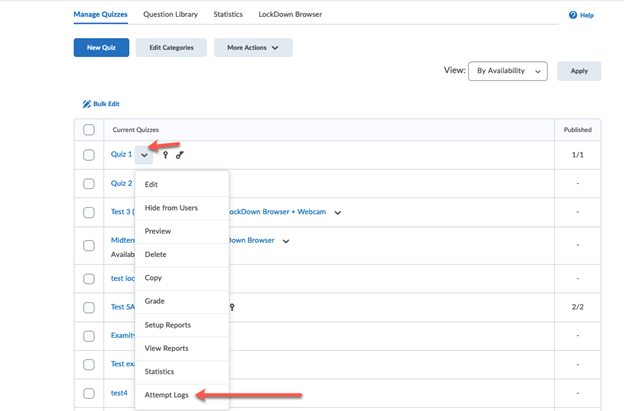
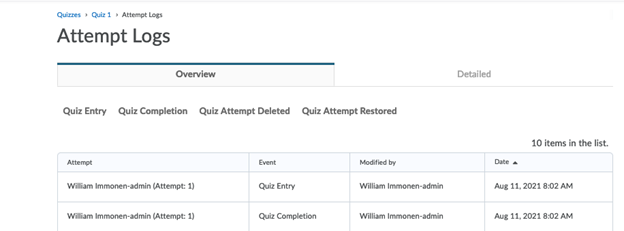
- On the Attempt Logs page, you will find 2 different tabs: Overview and Detailed. On the Overview tab, you also have the option of selecting a filter to see only one type of event in your list. Simply click on one of the options above in the overview table to see the filtered list.
- If a student did not make a quiz attempt, they will not show up in the logs.
- If a student has experienced a disconnection during a test, you will find this listed in the Detailed tab. Specifically, you will see them listed with a Quiz Entry event when they started, followed by another event later. The second event will be listed either as re-entry or internet restored item.
Downloading Quiz Attempt Logs
Quiz logs can be downloaded as either CSV or Excel files. To do so, follow these steps:
- From the course navbar, select Tools, then Quizzes.
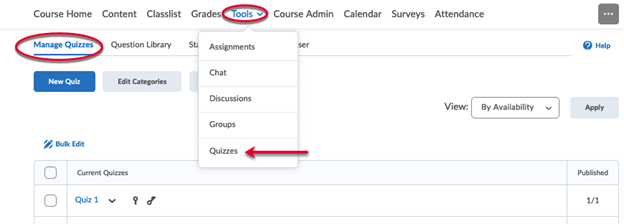
- Click on the chevron by the quiz you are interested in and select Grade.
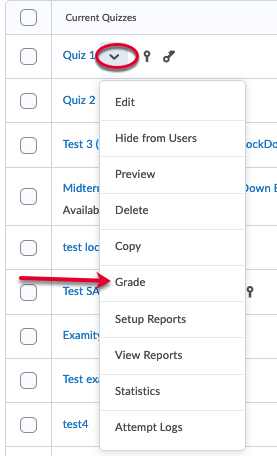
- Select either Export to CSV or Export to Excel
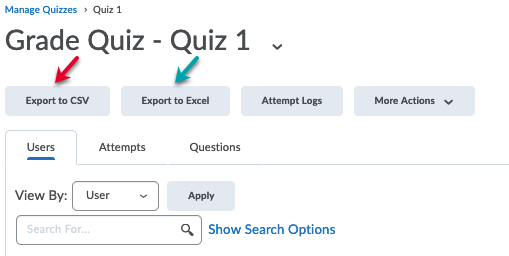
The file will download using the settings and norms associated with your selected internet browser.