


The Quiz tool allows instructors to assess students using a variety of questions and delivery options. This tool is very versatile, offering instructors flexibility.
Creating a New Quiz−+
Creating a New Quiz
−+
- At the top of your course in the Navbar, click on the Tools menu.
- In the dropdown, click Quizzes.
- If you have customized your course Navbar to include the quizzes option, you can select it to directly access the Quiz tool.
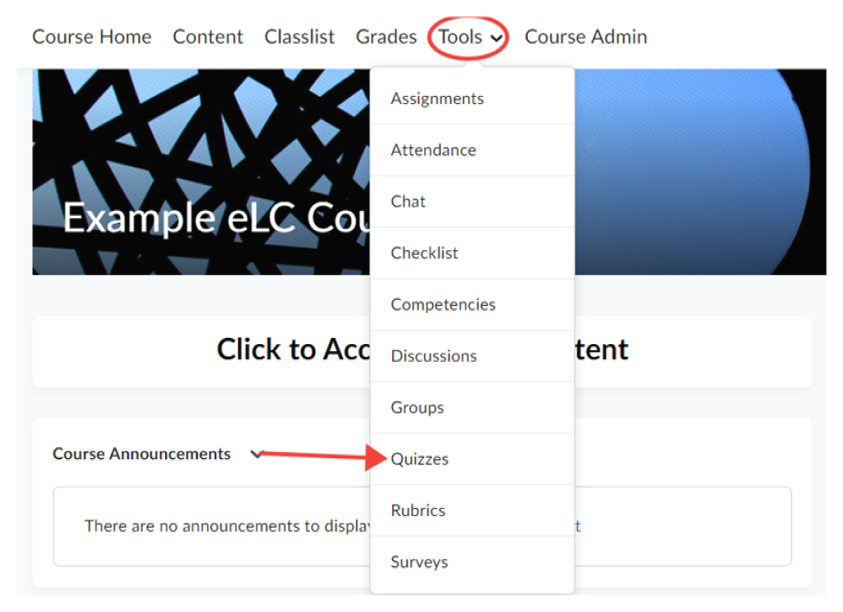
- If you have customized your course Navbar to include the quizzes option, you can select it to directly access the Quiz tool.
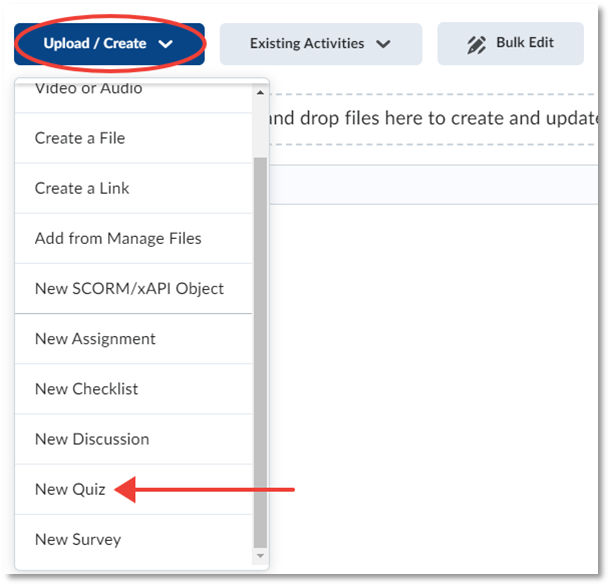
- Once you’ve opened the quiz tool, click the New Quiz button.

- Alternatively, you can also create quizzes directly in a module from the Content area.
Basic Quiz Setup−+
Basic Quiz Setup
−+
- Give your quiz a name.
- Set a due date.
- Provide a Description.
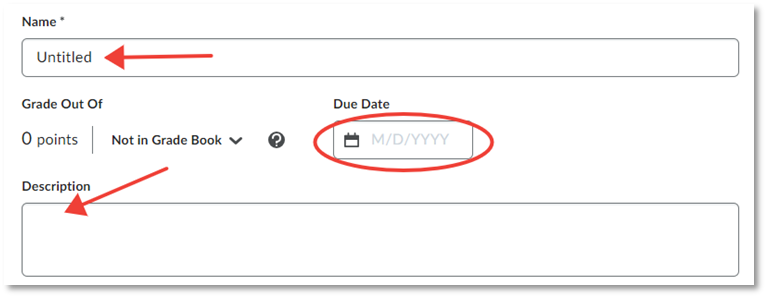
- Click the Not in Grade Book dropdown. Select one of two options:
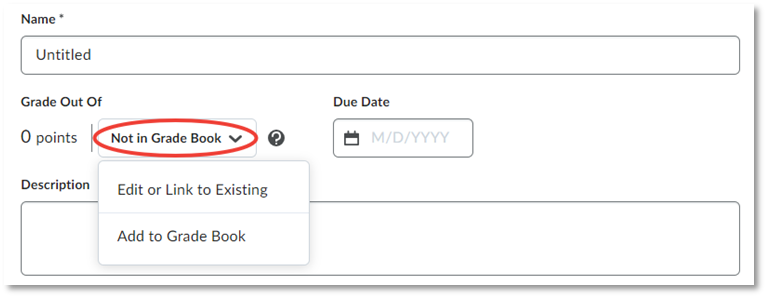
- Edit or Link to Existing – Use this option if you want to change an existing quiz, or if you have set up your grade book in advance and need to link this quiz to an item in your grade book.
- Add to Grade Book ‐ Use this option to create a new item in the grade book that will be linked to this quiz.
- Assign a point value by typing in the Grade Out Of box.
Creating New Quiz Questions−+
Creating New Quiz Questions
−+
- Click Create New.
- Choose a dropdown option. Your options are:
- New Question – Select a Question Type and create a new question and add it directly to your quiz.
- Section – Sections group questions together. They allow you to shuffle the order of certain questions.
- Question Pool – This is a section that contains a defined number of questions pulled at random from a larger set of questions. To use a question pool, you must have already created a section in the Question Library.
- Click Save to save your changes.
Adding Existing Quiz Questions−+
Adding Existing Quiz Questions
−+
- Click Add Existing.
- Choose a dropdown option. Your options are:

- Upload a File – Uploaded files must be in .CSV format.
- Browse Question Library – Use the Question Library to select existing questions or sections you’ve already created.
- Click Save to save your changes.