

Exempting a Grade for a Student −+
Instructors may need to excuse a student from one or more assignments. Exempting a student from a grade item will allow both the student and instructor to be able to tell at a glance that the item will not count against the student’s grade. Additionally, when final grades are calculated, the exempted grade item will not be used in the calculation.
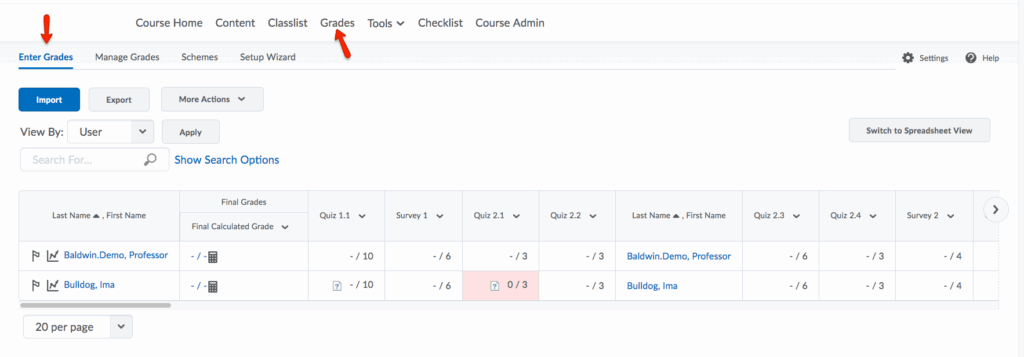
- To begin the process of exempting a student from a particular grade item, select Enter Grades from the Grades navbar.
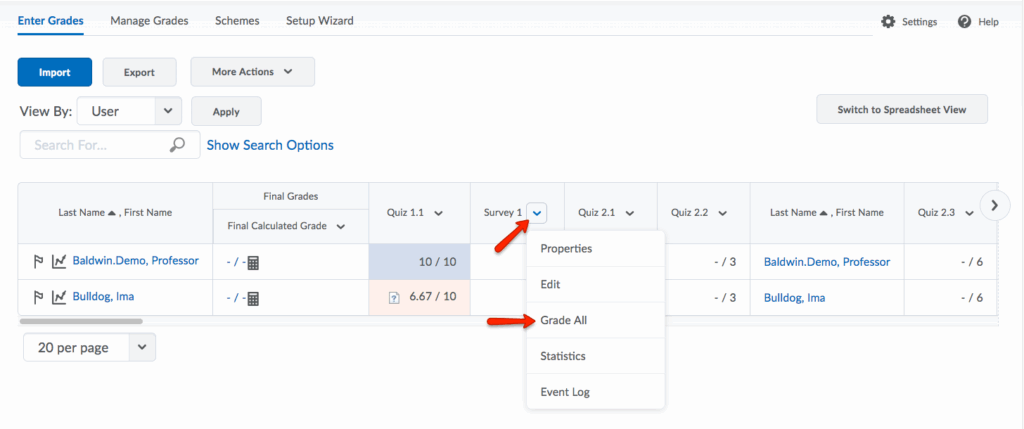
- Click the dropdown menu of the grade item from which you would like to exempt a student. Select Grade All.
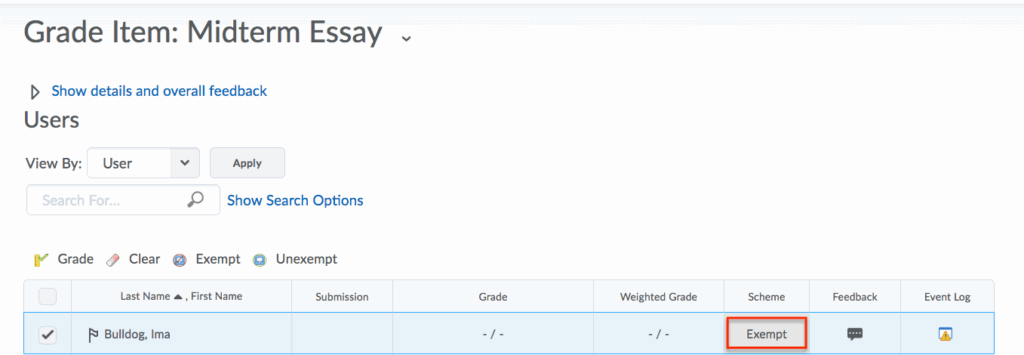
- Select the checkbox next to the student that you would like to exempt. Click Exempt.
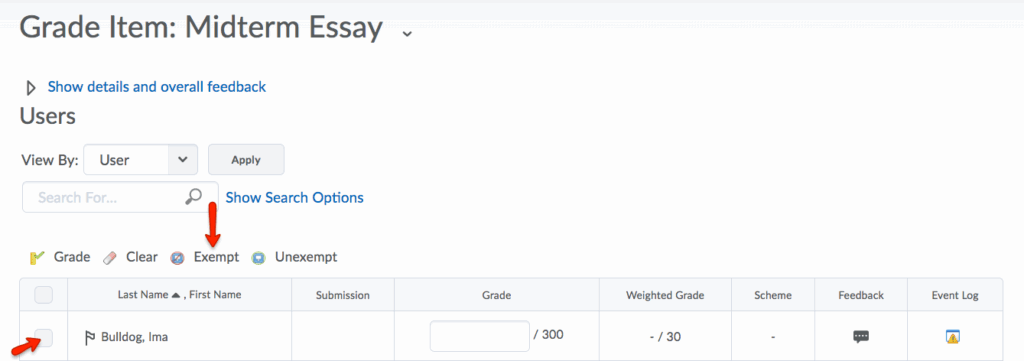
- Exempt should now be displayed in the Weight category of the grade item you selected for the student’s exemption.
Adding Bonus Points −+
A bonus item is a separate grade item which students can elect to complete. Points earned on a bonus item can only improve a student’s grade and are added to the final calculated grade.
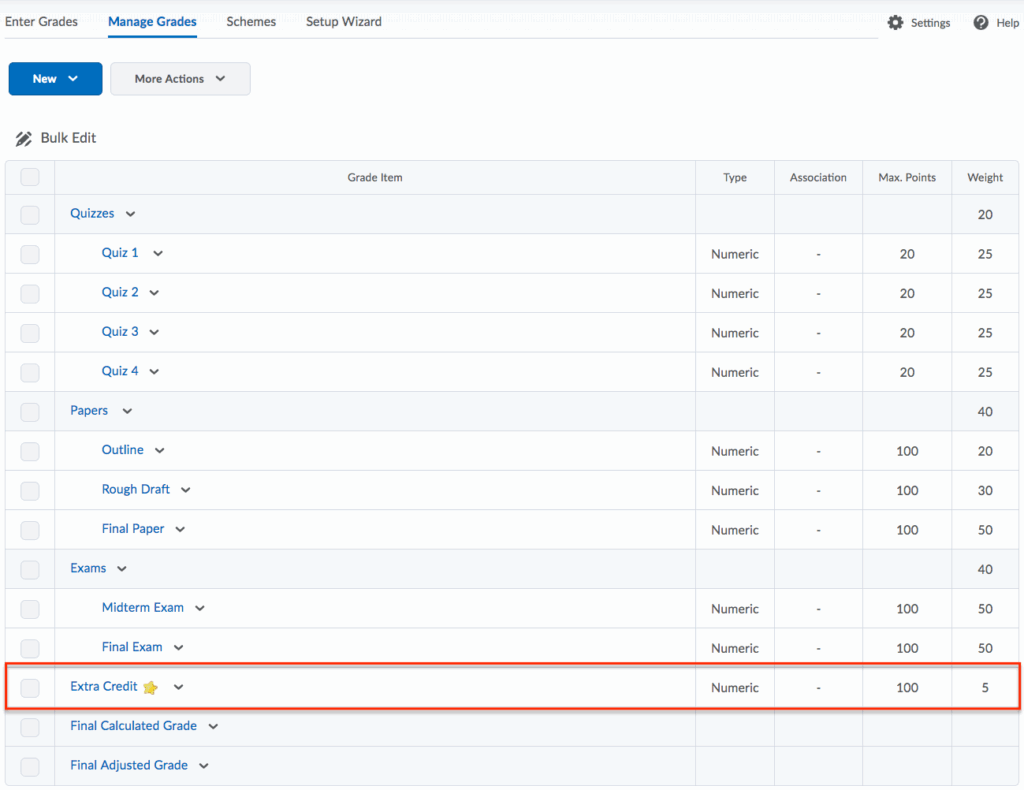
In this tutorial, an extra credit item that is worth 5% of the final grade will be created.
Please note that in the video above, Points are used in the Wizard set-up. However, in the steps shown below, setting up bonus items using Weighted grades is explained.
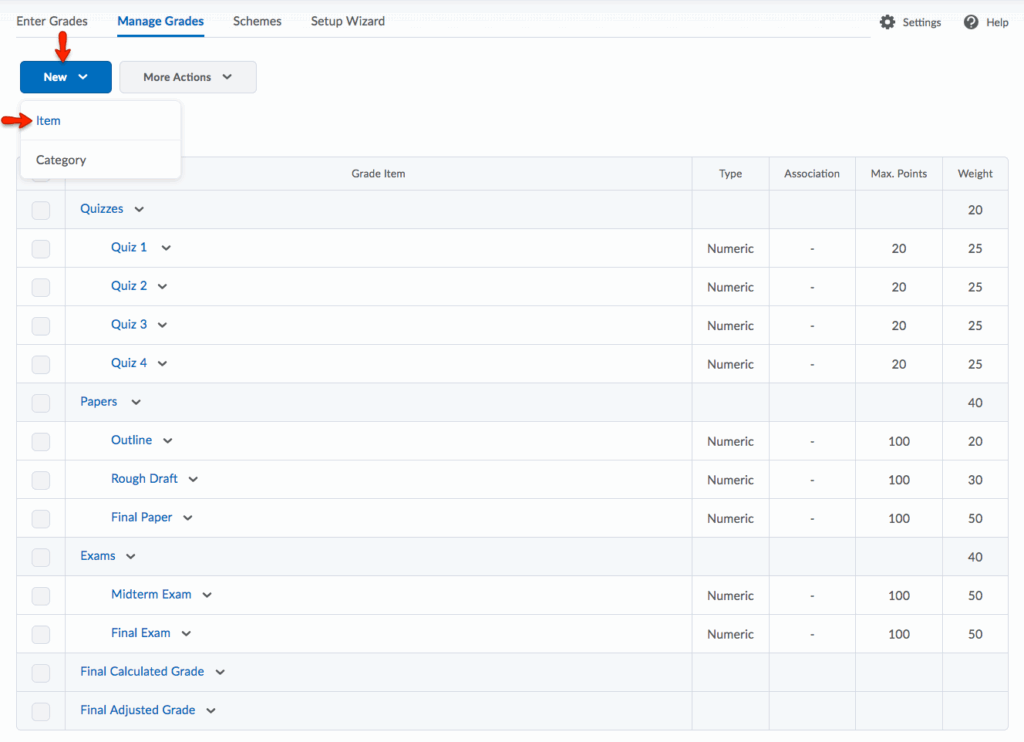
- To create a bonus item, click New, then select Item.
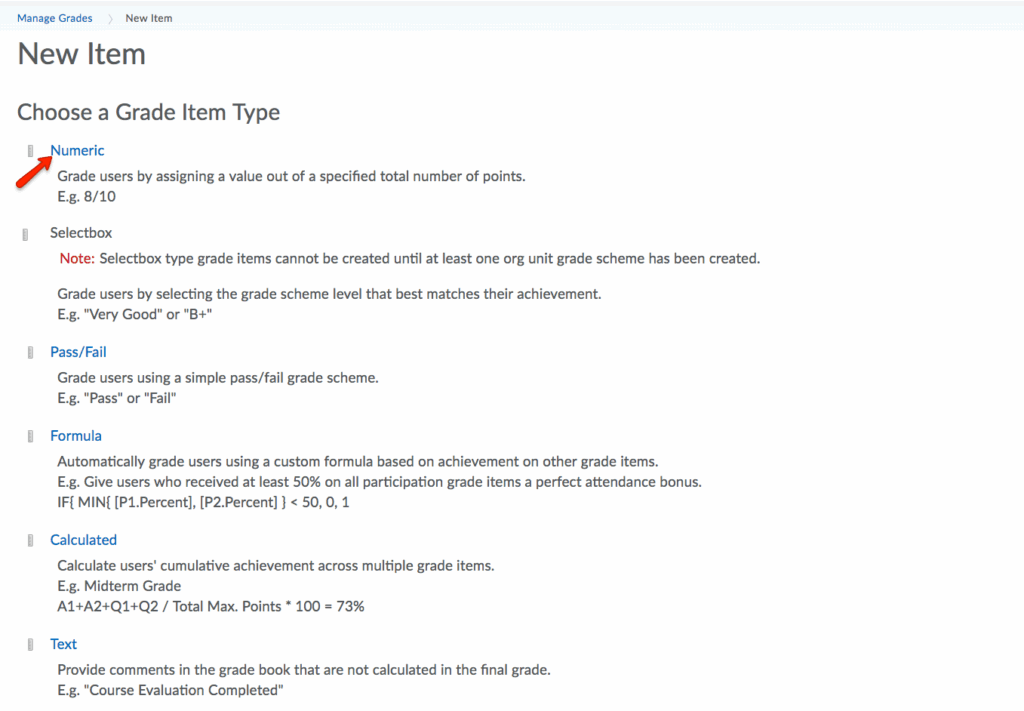
- Choose Numeric for the Grade Item type.
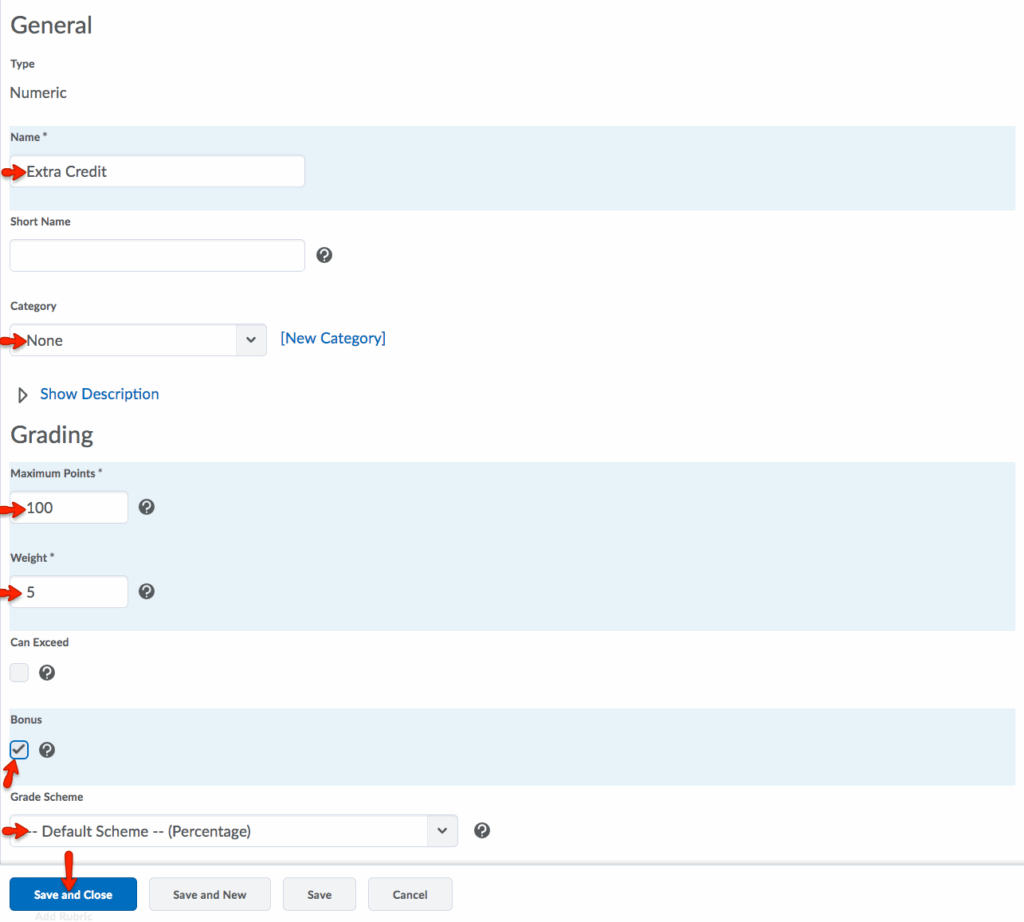
- Create an Extra Credit grade item with the following settings:
- Name: Extra Credit
- Category: None
- Max Points: 100
- Weight: 5 (and check the Bonus setting)
- Grade Scheme: Default Scheme – Percentage
- Click Save and Close.
- The Extra Credit item now appears in the Grades list, noted with a star.