
On your homepage you may notice different ‘boxes’ containing information and providing links to various tools (e.g., announcements, links to the content browser, etc.). These boxes are called widgets. Widgets are the building blocks of a course’s homepage and can be customized, moved around the page, or deleted. There are several different widgets available for use, and users can also create new widgets for use in their courses.

Note: To modify your course homepages by changing the widgets and layout, you will first need to make a copy of your default course homepage. Read more about customizing your Course Homepage Layout.
How-To Guides

Adding Widgets
+
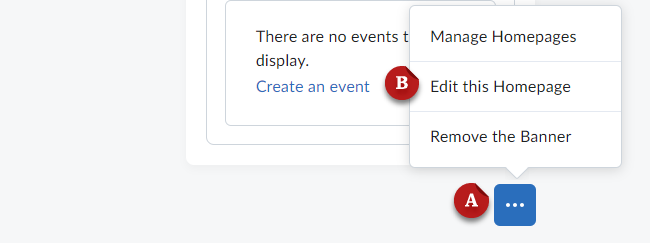
  1. From the course homepage, click the ellipsis icon [A] in the bottom right corner.
  2. Select Edit this Homepage [B].
  3. Click the Add Widgets button in the desired area.
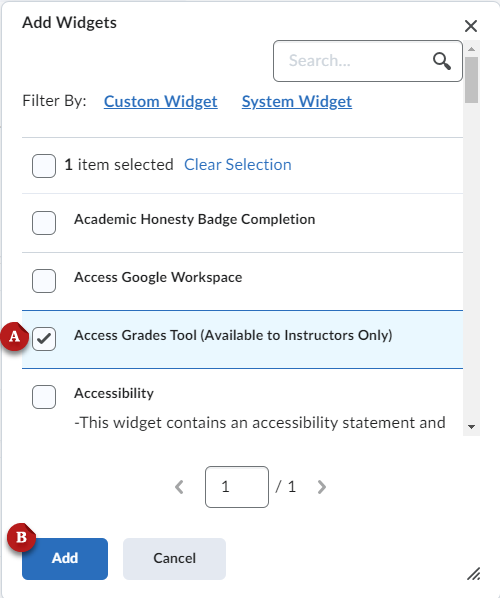
  4. Use the search bar or scroll to find the desired widget.
  5. Click the checkbox [A] next to the widget name.
  6. Click Add [B]
  7. Click Save and Close
Moving Widgets
+
  1. From the course homepage, click the ellipsis icon [A] in the bottom right corner.
  2. Select Edit this Homepage [B].
  3. Drag and drop the widget to the desired area.
  4. Click Save and Close.
Removing Widgets
+
  1. From the course homepage, click the ellipsis icon [A] in the bottom right corner.
  2. Select Edit this Homepage [B].
  3. Hover the mouse over the desired widget, and click the “X” that appears.
  4. Click Save and Close.
Customizing Widgets
+

Some widgets can be customized. You can change the name of a widget, and prevent it from being minimized by users in your course.

  1. In the course navbar, click Course Admin.
  2. Find and click the Homepages link.
  3. Click the Widgets tab to view the list of widgets.
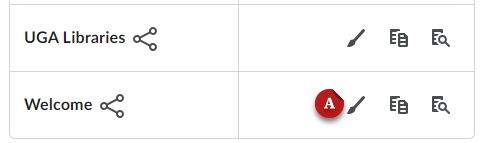
  4. Click the Paintbrush [A] icon to edit a widget.
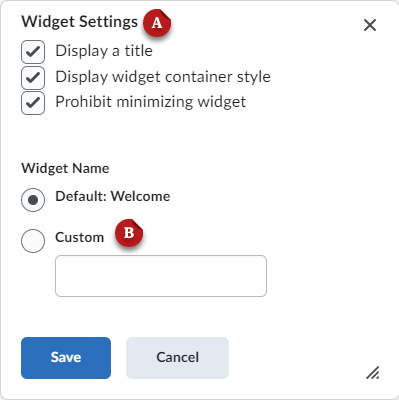
  5. Change the widget settings [A] with the checkboxes:
    • Display Titlebar – Shows the widget’s titlebar to users
    • Display widget container style – Shows the widget content inside a container with a white background (recommended)
    • Prohibit minimized widget – Prevents users from minimizing a widget.
  6. To change the widget name, select Custom [B] and input a desired title.
  7. Click Save [C].

Need more help with eLC?

Visit our support page to identify your best help options

FIND SUPPORT